|
Precautions for firmware update During the update process, do not operate the machine through the control panel, access the machine through Web Image Monitor, perform fax sending, printing, or TWAIN scanning jobs. The update process may take a long time to complete. Do not turn off the power during the update process. Please only turn off the power after the update completion message appears on the machine's control panel. During the update process, do not disconnect the cables being used for the update. When using a computer running Windows system, you must have an account with permission to manage printers. Login as an administrator to obtain this permission. 5. Use the following steps to update the controller firmware, making sure to print the configuration page before and after the update. Compare the configuration pages before and after the update to confirm if the update was successful. 6. Download the firmware file to the computer. Then create a folder on the local disk of the computer and save the following files to the folder.
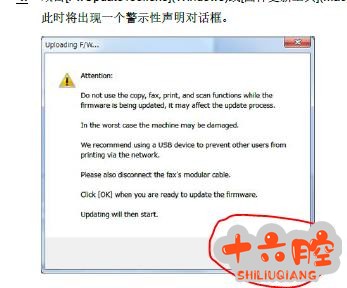
Updating the firmware takes approximately five to ten minutes. Firmware update steps 1. Connect your computer securely to the machine using a USB cable or network with updated firmware. Disconnect any other unnecessary cables. 2. Print the configuration page. (Print report) 3. Check the firmware version of the machine. 4. Double click the [FwUpdating Tool. exe] (Windows) or [Firmware Update Tool] (Mac) icon to launch the firmware update tool. A warning declaration dialog box will appear.
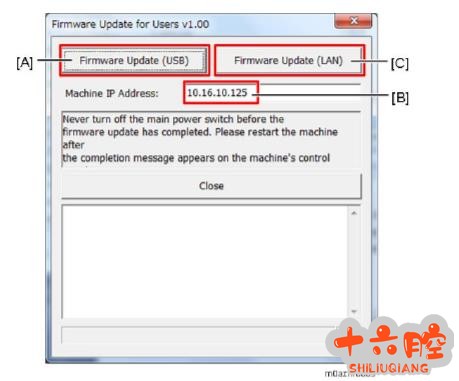
5. Carefully read the warning statement and click [OK]. The firmware update tool will be opened. 6. When connected via USB, click on "Firmware Update (USB)" [A]. In the case of network connection, enter the IP address of the machine [B] in the "Machine IP Address" field, and then click "Firmware Update (LAN)" [C]. The firmware update will begin.
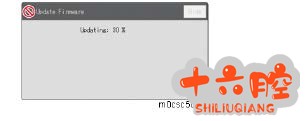
7. Check the current completion percentage of messages and updates on the machine operation panel.
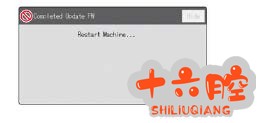
8. Please wait until the update completion message appears on the machine operation panel.
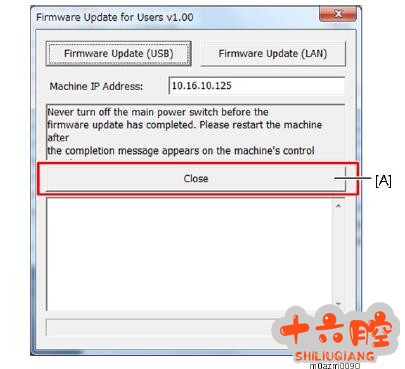
9. Click "Close" [A] to close the update tool. The machine restarts after the firmware update is completed.
10. Wait until "Ready" appears on the main screen or the machine's control panel. 11. Print the configuration page or maintenance page to check the firmware version of the machine. 12. Reconnect the cable that was disconnected during the update according to the connection status before the update. Note: 1. Do not turn off the machine until the update completion message appears on the machine operation panel. Otherwise, the controller board will be damaged. If there is no update completion message, the download fails. do it again. You can also switch from Ethernet connection to USB connection to see if it works. If the firmware still cannot be downloaded, it may be necessary to replace the engine board and/or controller board. If there is a power outage during the download process, please try again. If the firmware still cannot be downloaded, it may be necessary to replace the engine board and/or controller board. |
Address of this article:https://073868.com/post/5649.html
Copyright Notice:
For relevant infringements, reports, complaints and suggestions, please send E-mail:weixiuwang68@qq.com