|
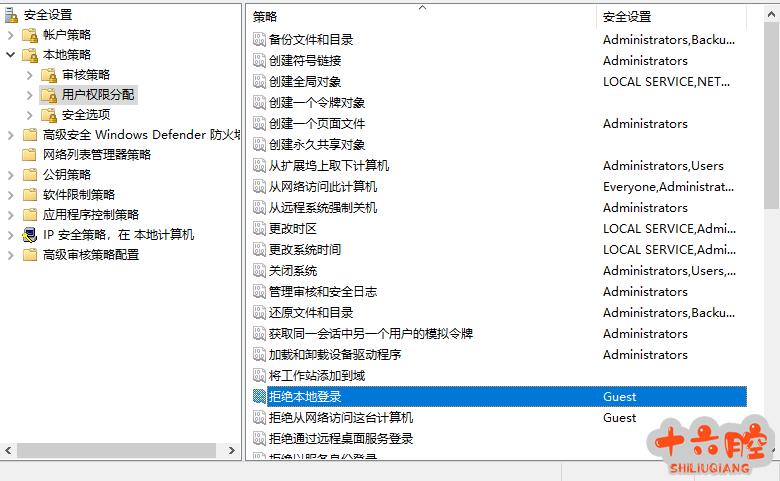
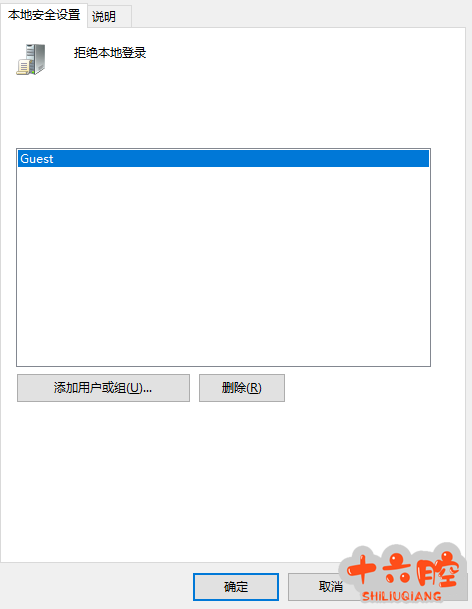
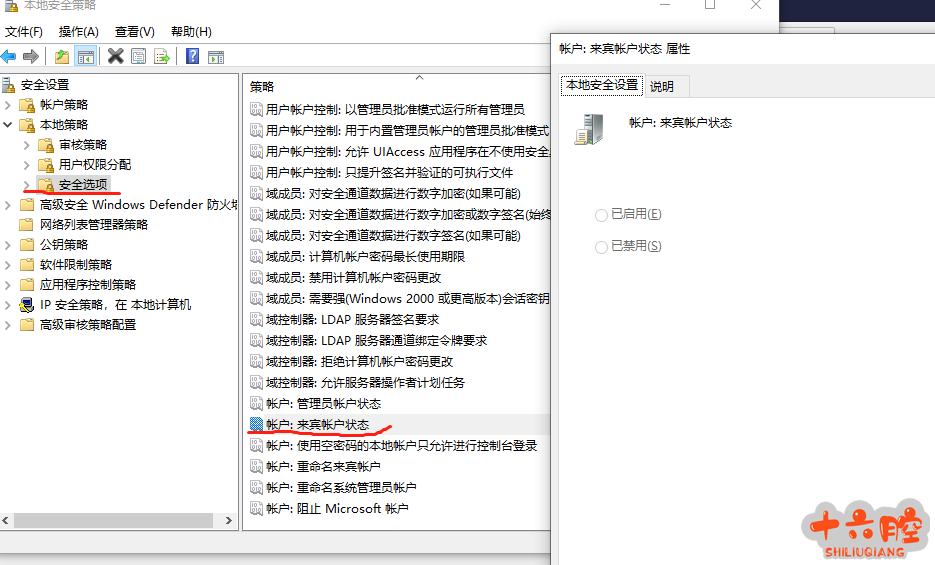
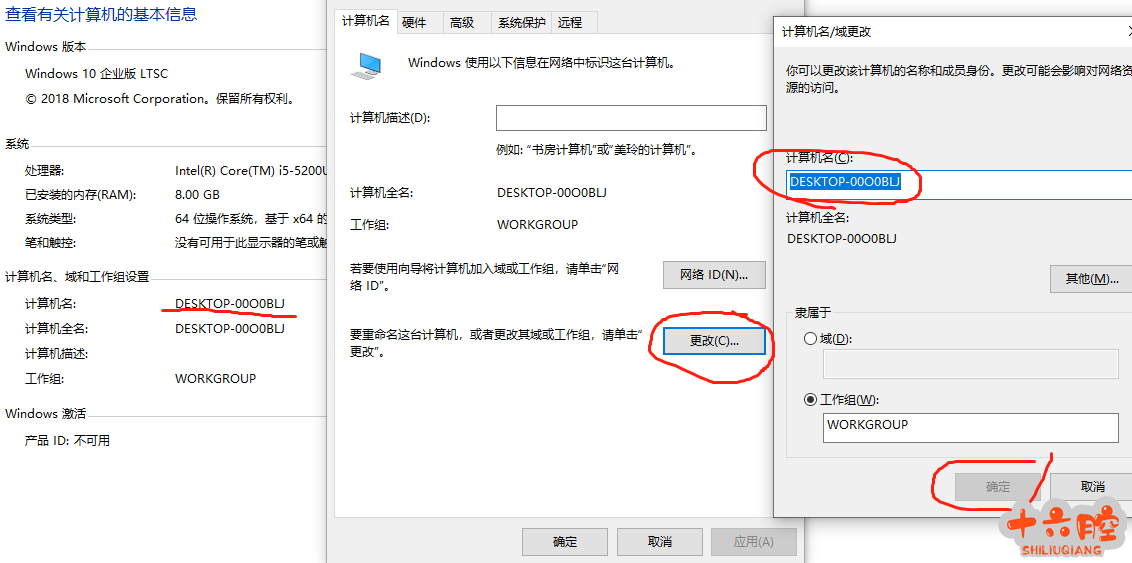
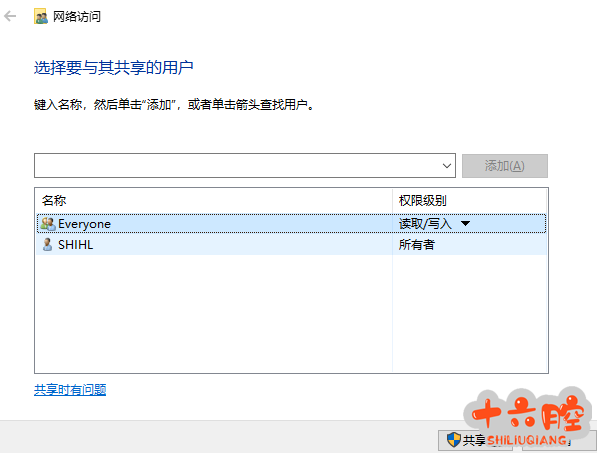
The possibility of Ricoh copiers failing to send after scanning the shared folder settings Scanning to a shared folder is a very convenient scanning method, but often there are various reasons at the customer site that may cause the settings to not work. Many teachers have shared the setup steps before, so I won't go into more detail here. Here are a few tips for checking and correcting scanning and sending failures after setup: 1. In the "Local Security Policy" section, there is a "Guest" user in the "Deny Local Login" section of the "Local Policy" and "User Permission Assignment". Please select it to delete it (Figure 1 and Figure 2) 2. Confirm in the "Security Options" section of step 1 that the "Guest" user has not been disabled (Figure 3). 3. Confirm in the control panel that the administrator account name cannot have Chinese characters. If there are Chinese characters, please change them to letters and numbers. 4. When the shared path is "\ computer name \ folder name", make sure that the "computer name" of other PCs in the network cannot have duplicate names. If there are multiple PCs with the same computer name (Figure 4), please change them to different names (letters and numbers) yourself (after all, most customers' network IP addresses are automatically obtained and cannot be used as paths). 5. When sharing folders, be sure to add the "everyone" user and set their permissions to "read/write" (Figure 5).
|
Address of this article:https://073868.com/post/5779.html
Copyright Notice:
For relevant infringements, reports, complaints and suggestions, please send E-mail:weixiuwang68@qq.com