|
ROM Update 1. Function Update the ROM version using the USB interface. Substrates to upgrade:
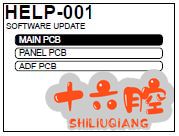
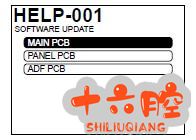
< 工作前要确认的项目> The binfile for the updated version is a package file, which includes all "motherboard, panel board unit, ADF (OP)". Each board performs the update version work separately, but uses the same files. Some motherboards may not be updated even when new packages are released. Compare HELP-000(ROM version display) with the Readme in the zip file, and then only update the board with the new version. 1. Enter "001" with "number keys", and then press "print key". 2. Touch the board to be updated. (Right: Take "Motherboard" as an example)
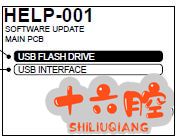
3. Select and touch the method to update the version. Select USB FLASH DRIVE for data update. USB INTE **CE: Not suitable for this model
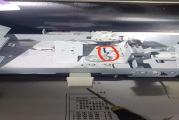
Update USB flash drive version 1. Copy the version update program to the USB flash drive in advance. 2. Turn off the power of the printing press. 3. Remove 1 screw and then remove the cover. Insert the USB Flash Drive ". 4. Start the printer in help mode and call up HELP-001.
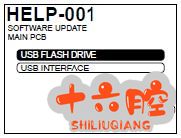
5. Select the board to update. 6. Select "USB Flash Drive" on the Select Update Version Method screen ".
7. Select Version Updater on the file selection screen. The version will start updating. 8. When the completion screen is displayed, the version is updated. Remove the USB flash drive after turning off the power. Important: Automatically resets after updating the motherboard. |
Address of this article:https://073868.com/post/5647.html
Copyright Notice:
For relevant infringements, reports, complaints and suggestions, please send E-mail:weixiuwang68@qq.com
Tags: #5451 #5441 #Firmware upgrade