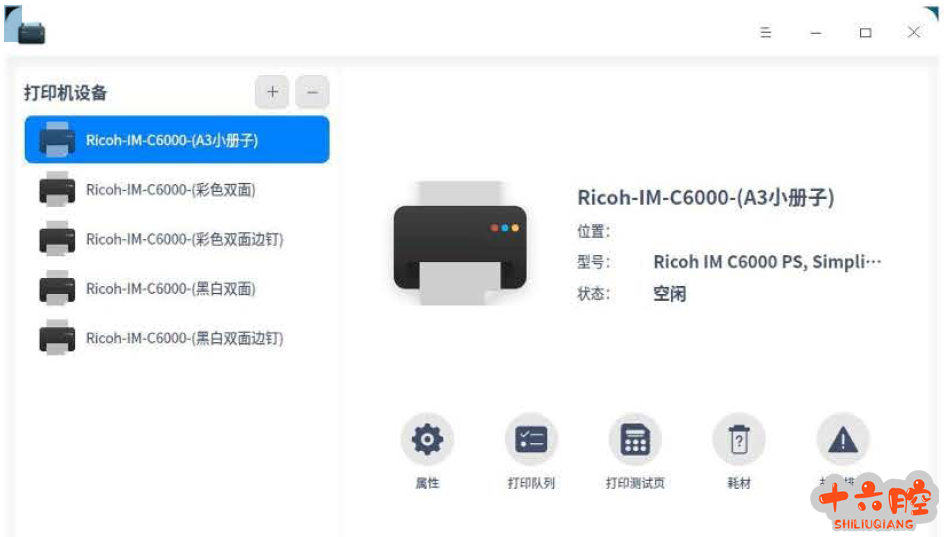
UOS system file printing and setting operation manual - booklet, binding, horseback riding binding Part 1 Printer Default Settings Step 1: Add printer driver 1. Find the print manager in the "Start Menu" (if not found, please search, download, and install it from the software store yourself); 2. Click the "+" sign to add a printer; 3. Pop up a dialog box to search for printers as needed; 4. Select the printer found and specify the driver package installation 5. After installing the printer driver, change the printer name (the printer name can be named according to different printing methods to facilitate subsequent operations, as shown in the figure:)
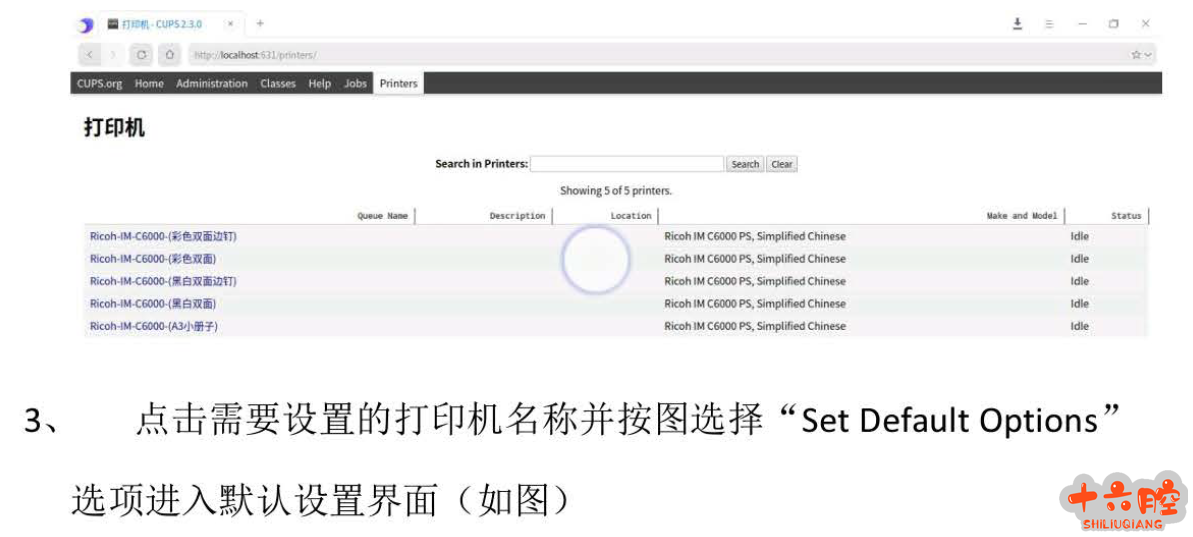
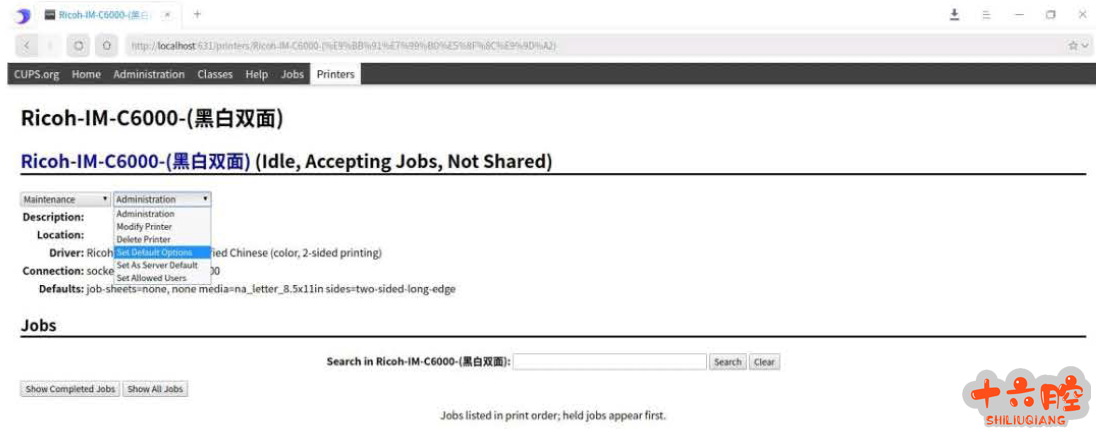
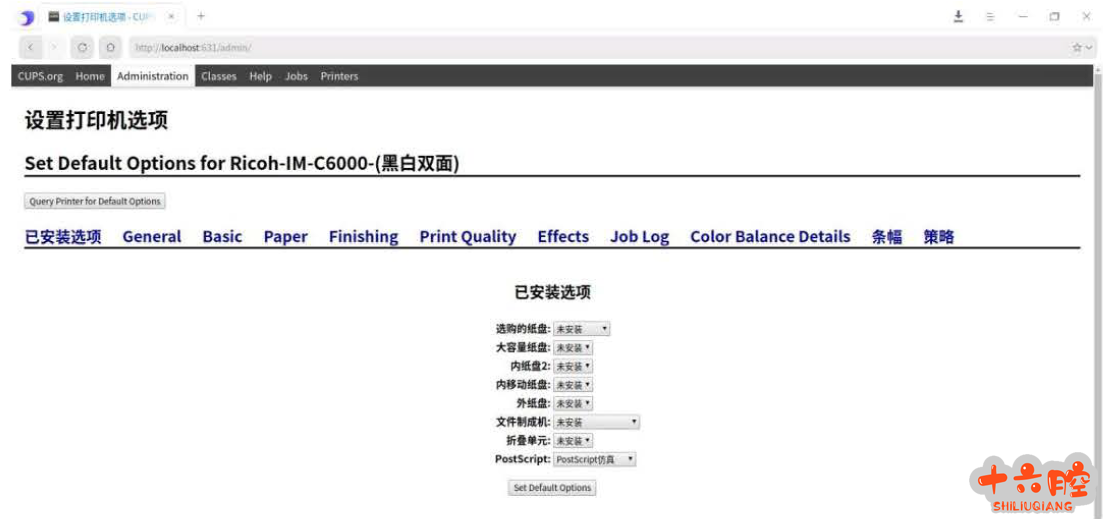
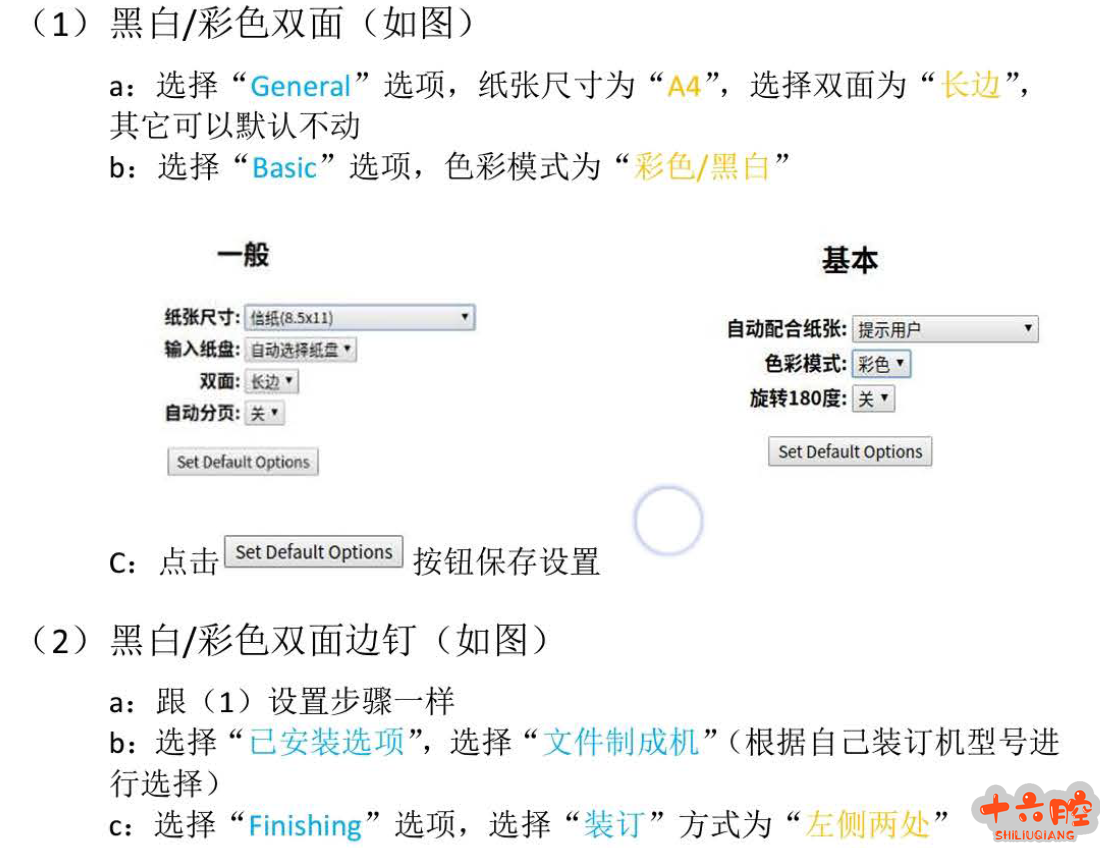
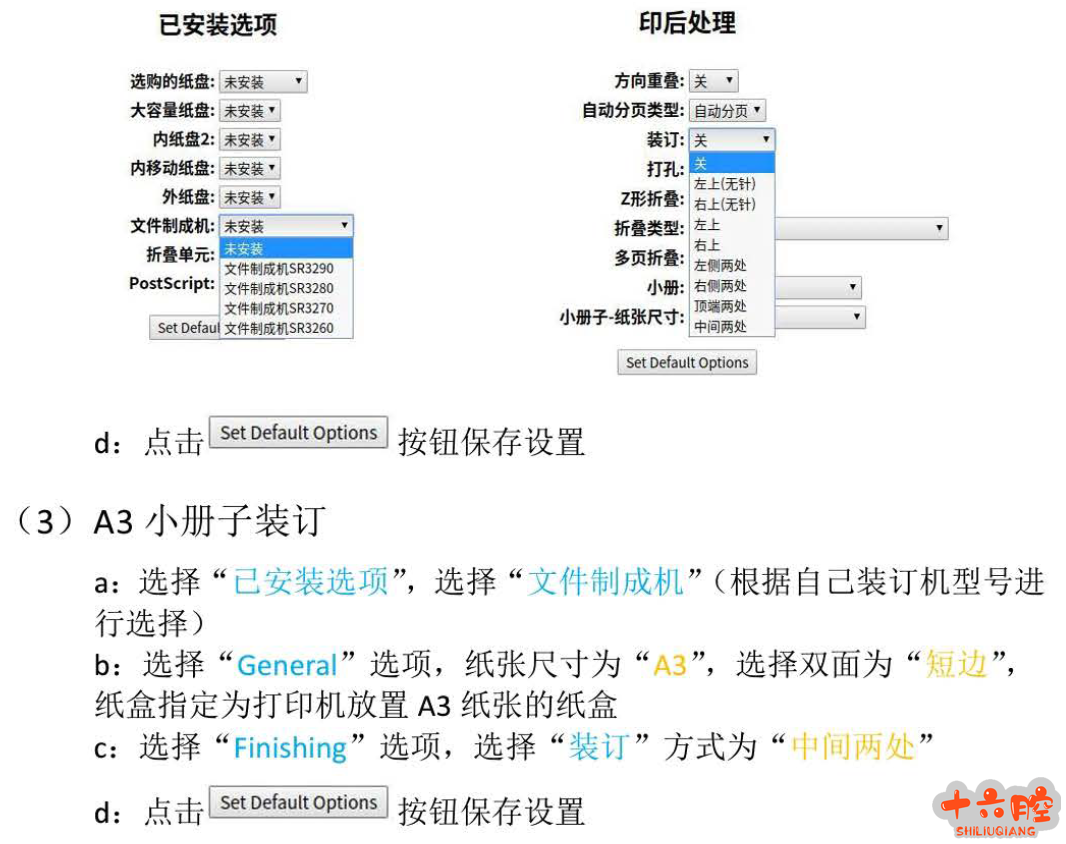
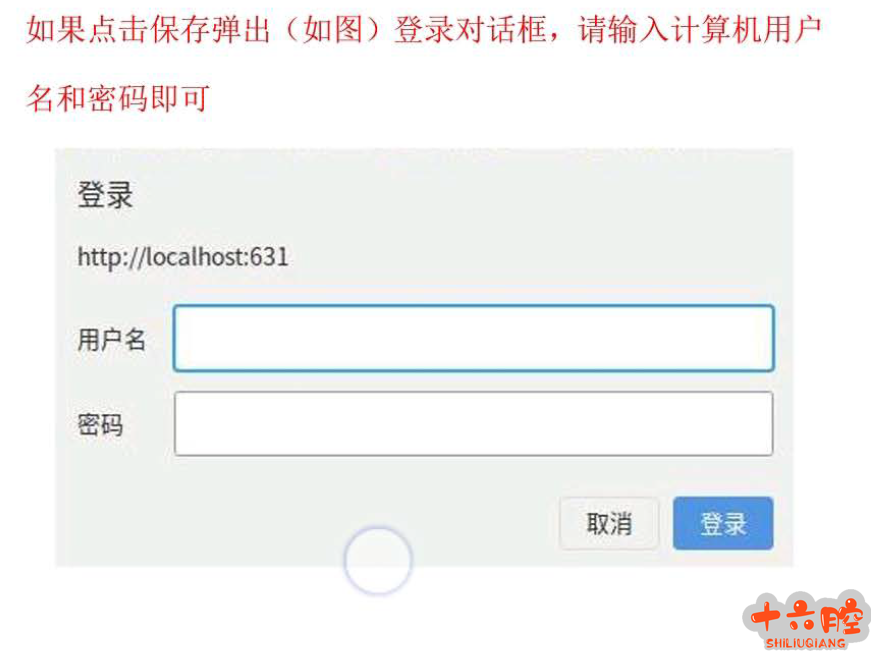
Step 2: Set printer default settings1. Open a browser and enter: localhost: 631 2. Select "printers" to enter the printer list (as shown in the figure:)
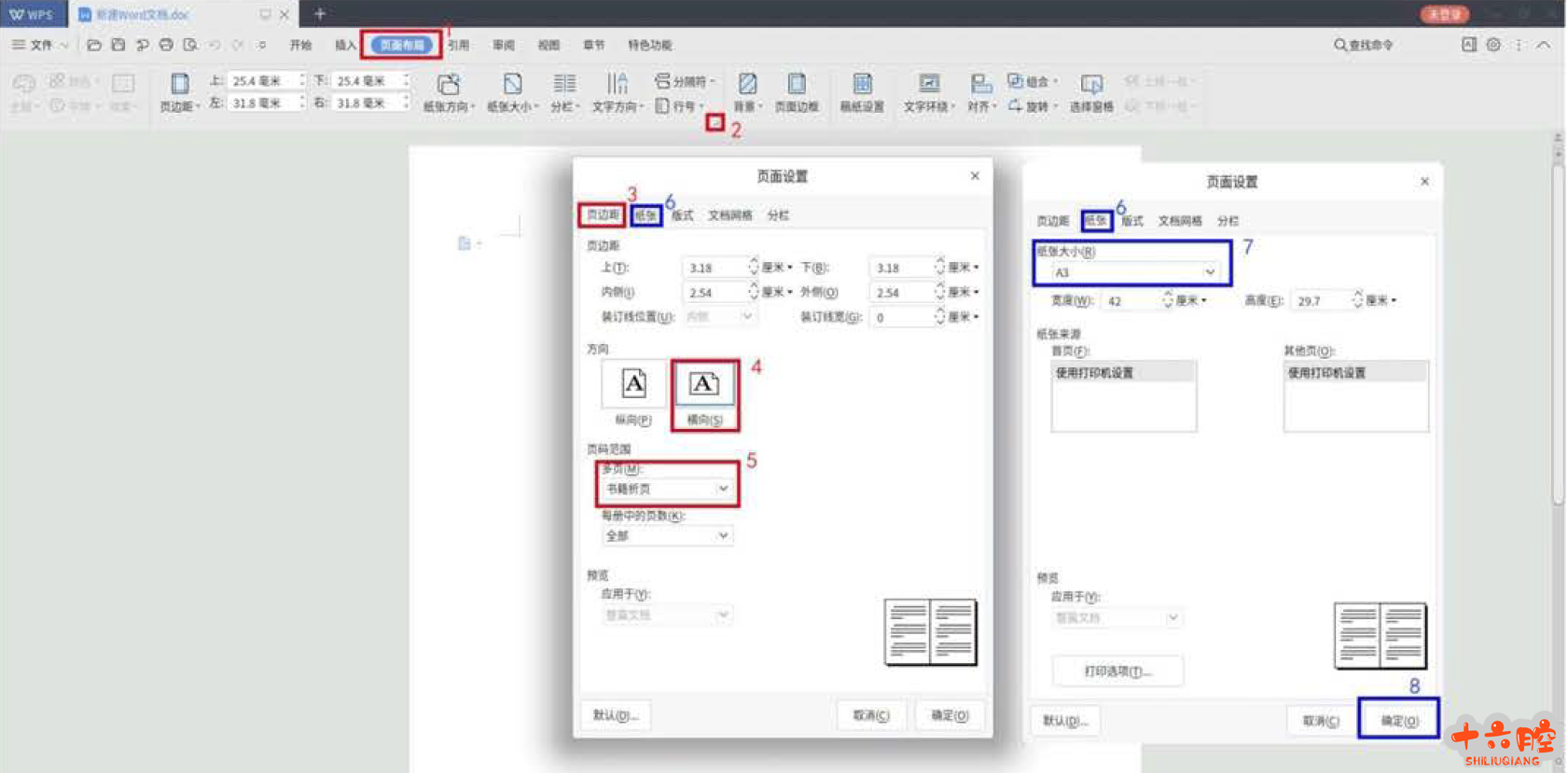
Part 2 Office Software Settings Note: This section is only for printing A3 booklets. For other printing methods, simply select the corresponding printer driver 1、 WPS Text (Word) Settings (as shown in the picture) 1. Page Settings 2. Click the print button and select A3 booklet as the printer
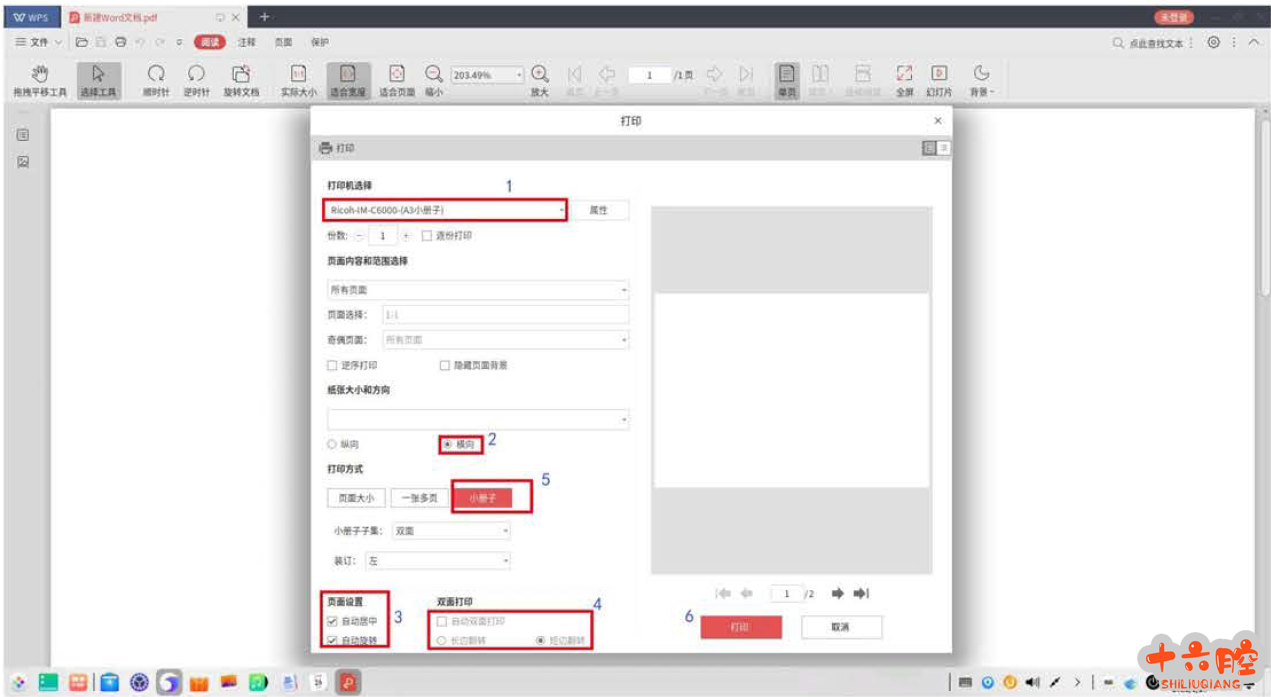
2、 PDF Printing Settings (There are many software that can be used for PDF, but this tutorial is only for WPS PDF. Due to a few bugs in WPS PDF software, please follow the steps numbered in the picture to set it up, as shown in the picture:)
Link: https://pan.baidu.com/s/1oEk5az7MFksPkWMjJSLDaw Extraction code: 2nds |
Address of this article:https://073868.com/post/5800.html
Copyright Notice:
For relevant infringements, reports, complaints and suggestions, please send E-mail:weixiuwang68@qq.com
Tags: #Domestic system #uos #Binding #Pamphlet #Horse riding booking