|
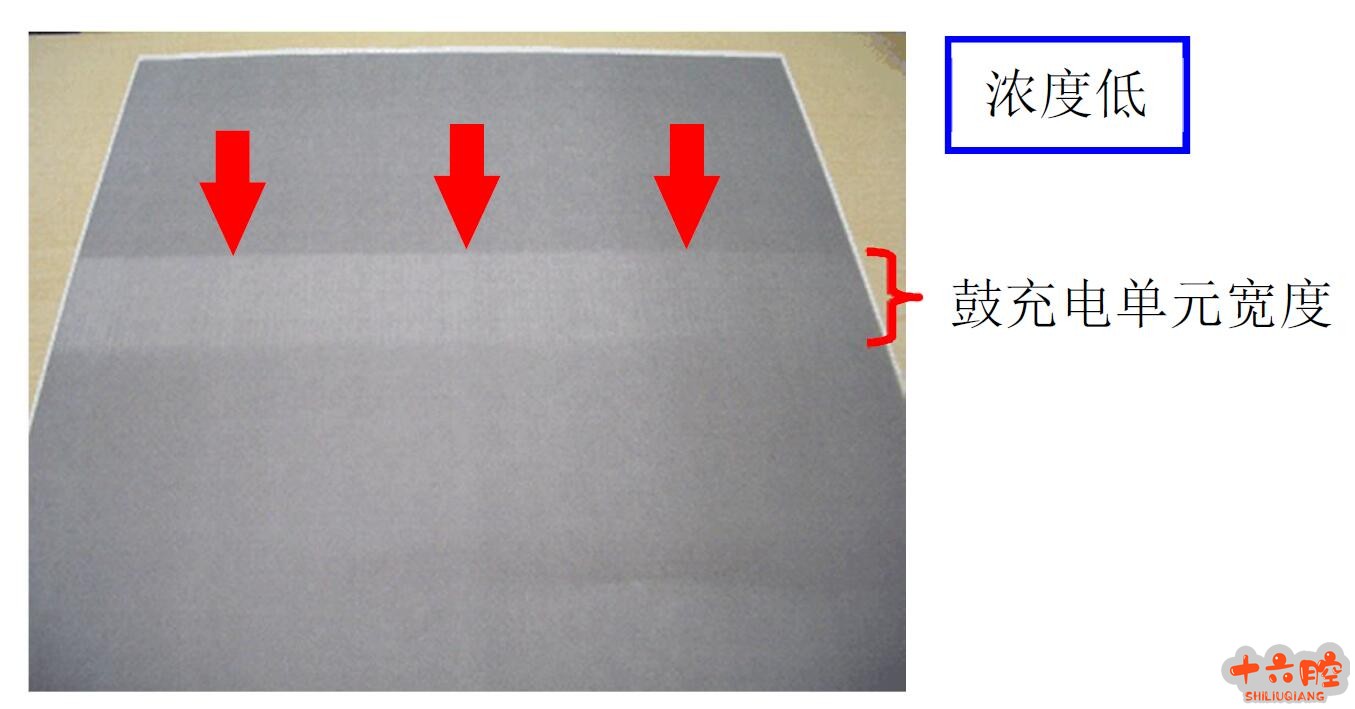
Ricoh Pro 8100s, 8110s, 8120s. Printing and copying images are blurry and unclear Symptoms Half tone and text images display low or blurry density. The distance between symptoms appears to be the width of the drum charging unit.
Note: In addition to the above symptoms, the color powder supply control (process control) is affected by the creation of images in the affected area, which may display SC401 and bottom ash. Reason The NOx (nitric oxide) generated during the drum charging process is mixed with lubricating powder (zinc stearate) to absorb moisture and adhere to the drum surface. If the machine is not used for a long time, the drum charging in the affected area will be poor. Solution [kkpay=5]1. Upgrade the engine firmware to Ver.1.45:08 or later. Note: Execute SP2810-001 (clear blurry images), older engine firmware than the above version may cause SC465 2. Define the following SP values: SP2810-001: 1 (default) This setting will automatically execute 'Clear Blurred Images' continuously. SP2810-005: 360 (default) 120 This setting will automatically execute 'Clear Blurred Images' when the machine is idle for 2 hours. SP2810-006: 13 (default) 7 When the machine operates under moderate temperature and humidity conditions, this setting will automatically execute 'clear blurry images'. If the above cannot solve the problem, manually execute SP2810-004 (clear blurry image) several times. If the image is still blurry, replace the drum.[/kkpay] |
Address of this article:https://073868.com/post/5423.html
Copyright Notice:
For relevant infringements, reports, complaints and suggestions, please send E-mail:weixiuwang68@qq.com