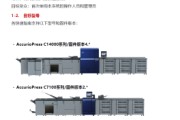
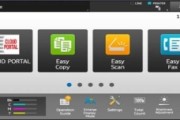
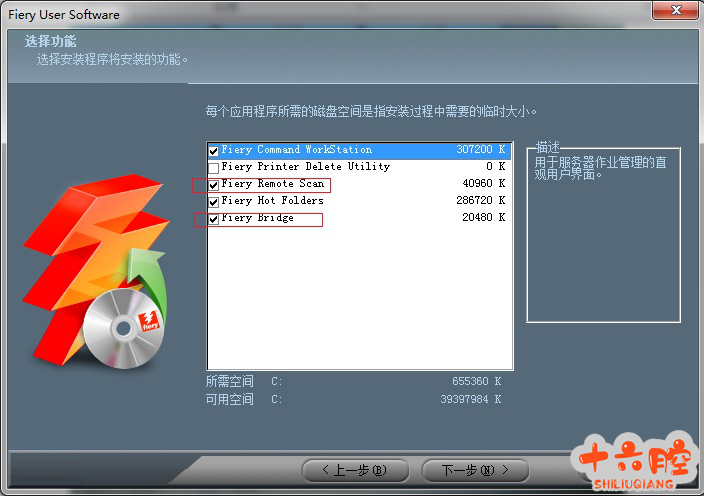
Due to the complete DMP platform, J75/C75 has more diverse scanning methods compared to 550 and 700. In addition to traditional scanning templates, it also supports scanning methods such as scanning (PC save), scanning (email send), scanning (mailbox save), and scanning (URL send); However, based on the characteristics of J75/C75 customer networks, in addition to template saving, it is recommended to use PC saving and mailbox saving. 1、 Scan (Template Save) 1. Network cable connection method, with one end connected to IOT and the other end connected to the SCAN port of the server, as shown in the figure: 2. On the UI panel, log in as an administrator (username: 11111, password: x-admin), set specifications/register specifications, set network settings and communication protocol settings, set automatic IP address acquisition, turn off the option, and IOT will automatically restart. 3. After restarting the UI interface, enter the scan (template save), and you can see several templates such as Fiery_BW indicating that IOT and server synchronization are normal. You can use the scan (template save) function, select the template as needed, press the start button to scan, and then use Fiery Remote Scan or Fiery Bridge to extract. Users can click on the Fiery icon on the UI interface to create a scanning template according to their needs Fiery administrator password: Fiery. 1 Can create, delete, and modify templates 4. Install Fiery Bridge or Fiery Remote Scan on the client side, open the User Software installation disk, and select the components that need to be installed for installation
5. After installation, restart the computer and click on Fiery Remote Sacn. To run it for the first time, you need to add a server Change email address, log in with guest account, you can see the scanned documents already in the server, save as and save to the specified folder Note: "Mapping email to folder" is a new version feature that replaces Fiery Bridge and allows scanning documents to be directly sent to a specified folder without the need for manual saving; However, the test results show that the automatic saving time to the folder is uncertain and sometimes takes a long time, so it is not recommended to set this feature at present. It is recommended to manually save using "Save As". 6. Open Fiery Bridge, add a server, set up a guest account login, and you can see the scanned copy. 2、 Scan (mailbox save) and Scan (PC save) Network cable connection: One end is connected to IOT, and the other end is directly connected to the backpack server. 1. Scan (save mailbox) On the UI panel, log in as an administrator (username: 11111, password: x-admin), register/change mailbox registration, select an unregistered mailbox name to create a mailbox, and the scanned copy will be saved in the mailbox and obtained through CWIS. Select Scan (Save Mailbox) on the UI interface, click on the mailbox to be scanned, and press the start button to scan. Open IE, enter the IP address of IOT to link to IOT, and log in as an administrator (username: 11111, password: x-admin) Scan option mailbox, click on the scanned mailbox You can see the scanned copies in the mailbox, select the scanned copy to download, choose the format of the scanned copy, and also choose whether to "retrieve file" or "print file" Note: The Mailbox Viewer tool, which is standard installed in the company and attached to the Docuworks software, is used in conjunction with scanning mailboxes and is very convenient. But if it involves software fees, it cannot be installed on the user's computer. 2. Scan (PC save) To create a shared folder on a PC, it is recommended to create it in the root directory of the D or E drive, rather than on the desktop. Creating a shared folder on Win7 and XP systems may have some differences. XP: Turn off the firewall! Create Everyone users in both the "Share" and "Security" options and grant them full control permissions. Link: https://pan.baidu.com/s/1fvBHpud0E6F4BhxRKkohFw Extraction code: oc28 |
Address of this article:https://073868.com/post/4993.html
Copyright Notice:
For relevant infringements, reports, complaints and suggestions, please send E-mail:weixiuwang68@qq.com