|
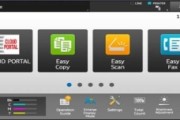
Subject: Solution that SIQA cannot use after IOT repair Summary: When clicking "Auto Alignment" on the touch screen of the IOT of J75P, it will prompt "Please wait for the image quality adjustment to complete the setting". Problem description: After the J75P repaired IOT in CSE, the data was cleared and the automatic alignment parameters were lost, which needs to be readjusted. However, when logging in with the administrator on the IOT touch screen and clicking automatic alignment under the maintenance menu, it always prompts "Please wait for the image quality adjustment setting to be completed". Solution: When using SIQA for automatic alignment on J75P, some settings must be made first. 1. Printer Auto Reset needs to be on. The setting step is to click "authentication" on the IOT touch screen, enter the administrator identifier "11111", after logging in, click "specification setting/registration"-> specification setting-> general setting, set "printer automatic reset" to "yes", and set the automatic reset time to 30 seconds. 2. To use the automatic alignment function, you also need to create a confidential mailbox on the IOT. This confidential mailbox is dedicated to SIQA and cannot use workflow, etc. The mailbox number on the IOT occupied by this confidential mailbox by default is 190. This confidential mailbox is not created manually, but needs to be created by connecting IOT to the server or computer with SIQA software installed. The creation steps are as follows: First of all, make sure that the IOT touch screen shows a normal user. At this time, open SIQA software on the server and enter the IP address of IOT: 100.100.100.101 in the pop-up window, as shown in the figure Note: Generally speaking, the IP address of IOT is 100.100.100.101, while the IP address of server is 100.100.100.102, and the subnet mask is 255.255.255.252. The IP address of IOT should be obtained automatically instead of manually specified. If you manually specify the IP address of the IOT, the PC scan mode may not be available. Then enter the machine manager ID as "11111" in the pop-up window and click OK. If the network communication is normal, SIQA software will automatically create 190 confidential mailbox on IOT for SIQA. After completion, SIQA will pop up a prompt that the creation has been successful, and click OK. At this time, close the SIQA software, then log in with the administrator on the IOT and click on the automatic alignment to print the test sample. Note: When the automatic alignment function prints the test sample, you need to pay attention. You must use standard A3 size paper. Otherwise, the SIQA software does not recognize the scanned data and will prompt the scanned data error.Link: https://pan.baidu.com/s/1VXfLcwQOvarH61WFUrd4gg Extraction code: dxp2 After copying this content, open Baidu's internet disk mobile phone App, which is more convenient to operate. |
Address of this article:https://073868.com/post/4828.html
Copyright Notice:
For relevant infringements, reports, complaints and suggestions, please send E-mail:weixiuwang68@qq.com
Tags: #SIQA #IOT #Automatic alignment #C75 #J75