|
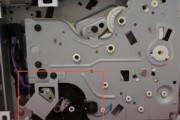
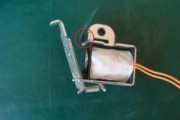
A OJ7612 printer is experiencing a paper jam issue. The customer was contacted by phone and reported that there is no paper jam inside the machine. Go to the customer's site and check that there is indeed no paper jam inside the printer. During testing, it was found that during the printer's power on self-test process, if the pen holder is moved to the left position and does not move, the LCD screen will display a paper jam error message. Repeated shutdown checks revealed that the repair station did not clean the print head, indicating that the repair station did not make proper contact with the spindle. After disassembling and adjusting the maintenance station, the malfunction persisted even after installation. After repeated disassembly and inspection, it was found that the paper feed sensor did not reset. After adjustment, the problem was resolved. See the following figure: [kkpay=4]Link:https://pan.baidu.com/s/1EX_Pzfx7LZDtxyRc9JNJJg Extraction code: g6dr[/kkpay] Solution: 1. The first choice is to detect whether there is a paper jam inside the printer, and if so, remove the paper jam. 2. Check if the steering wheel is misaligned and cannot return to its original position. If it is misaligned, adjust and reset it. (The steering wheel is located on the left side of the motherboard, under the pen holder in Figure 2) 3. Observe whether the pen holder moves, and if it cannot move, consider the pen holder. 4. Check if there is any cleaning of the print head at the service station. If there is no action, it indicates that the repair station is stuck. Disassemble and adjust. If the adjustment is ineffective, consider the service station. 5. If the machine is not jammed, the pen holder can move normally, and there are no problems with the service station, carefully check whether the paper feeding sensor is not reset. If it is not reset, adjust it to the normal state. Problem solved. |
Address of this article:https://073868.com/post/4755.html
Copyright Notice:
For relevant infringements, reports, complaints and suggestions, please send E-mail:weixiuwang68@qq.com
Tags: #OJ7612 #Boot #Paper jam #Print head #Sensor