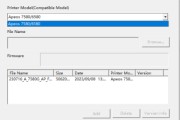
|
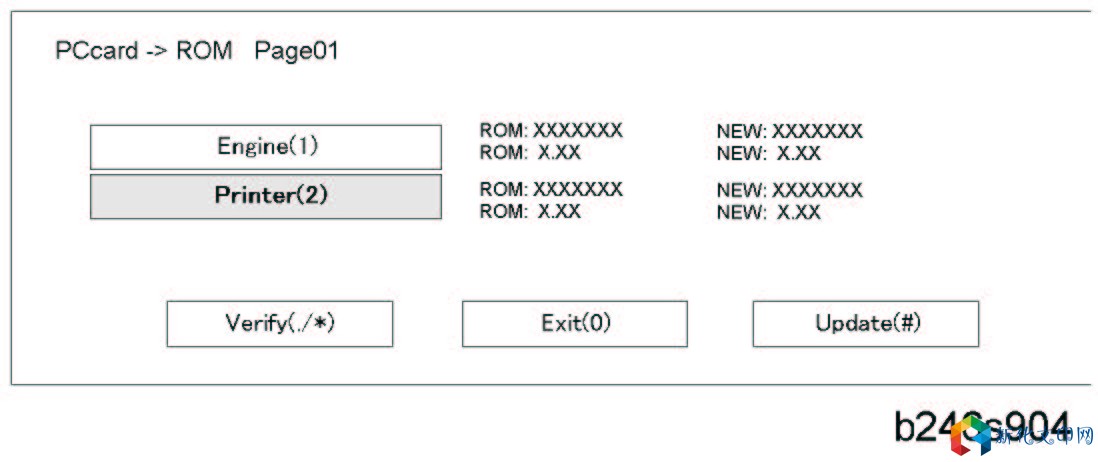
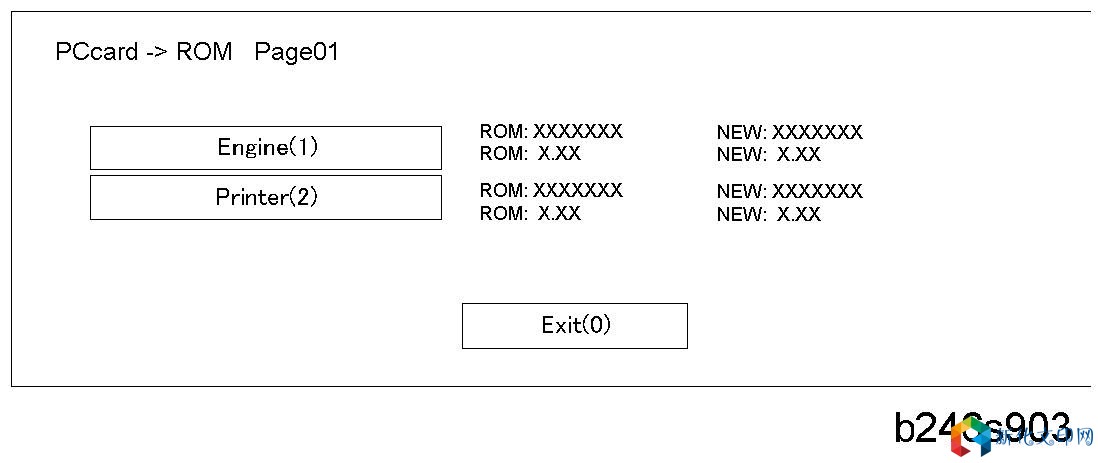
Execute software update program This program requires an SD card with the software downloaded. 1. Turn off the main switch. 2. Remove the SD card slot cover (x 1). 3. Hold the SD card (the printing surface must be away from the front of the machine) and insert the SD card into slot 2. 4. Turn on the main power switch. 5. Do not stop until the version update screen is displayed. If the SD card contains multiple software applications, the screen will be almost identical to the following screen. The following screen displays an SC card containing two applications ("Engine" and "Printer").
To select an upgrade project, touch the options on the touch panel or press the corresponding keys (1 to 5) on the numeric keypad of the operation panel. The numbers in parentheses indicate the buttons that need to be pressed. When making a selection, the [Verify (./*)] and [Update (#)] buttons will appear on the screen.
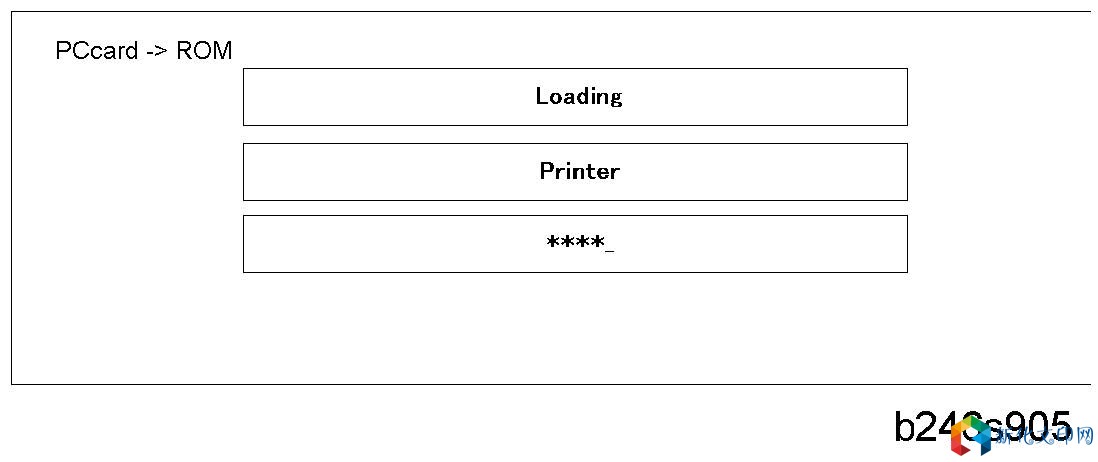
If you press the [Exit] (or [0] key), you will return to the regular operation screen. Press the [Start] key on the control panel to select and download all the options displayed on the screen. To deselect and make a new selection, press the [Clear] key on the control panel. ROM ": This refers to the number and other version information of the ROM firmware installed in the machine at this time. • "NEW": This refers to the firmware number and other version information on the SD card. When displaying the selected items in opposite colors, press the [Update] button or [#] key on the control panel to start updating. After pressing [Update]:
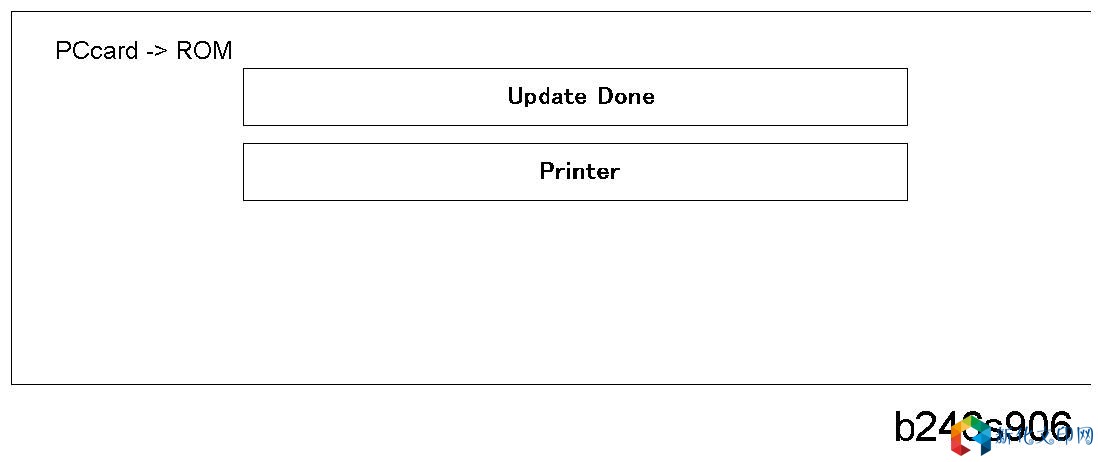
The middle column displays the module name updated by the machine at this time. (The above example shows the machine updating the "printer" module at this time.) The bottom column is the progress bar. The "_" mark in the progress bar is replaced by an "*" mark. For the control panel, this progress bar cannot be displayed during firmware updates. But the LED of the [Start] button on the control panel will change from red to green, indicating that the firmware update on the control panel is continuing. When the update is complete, you will see this screen.
After the firmware update, you will see "Update Completed" in the first column. The name of the module in the bottom column is the name of the last updated module (if multiple modules have been updated, only the name of the last module will be displayed). 8. Turn off and then turn on the power again. Select the updated project and press the [Validate] button. This can check if the module has been updated correctly. If you see "Verification Error" in the first column of the screen, you must re execute the program for the module displayed in the bottom column. Link: https://pan.baidu.com/s/1WDLlEacwdOUW2DQdLtiUdg Extraction code: fbor |
Address of this article:https://073868.com/post/4652.html
Copyright Notice:
For relevant infringements, reports, complaints and suggestions, please send E-mail:weixiuwang68@qq.com