|
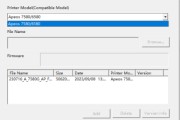
Toshiba e-STUDIO300D/301DN/302DNF firmware upgrade+upgrade method Operating steps:1- Device powered on, enter [maintenance mode], print maintenance report:method: Boot-Press [Menu] - [Start] - then press the [Up] button four times, After entering maintenance modeEnter 77, the MFP will print the maintenance reportPlease check the firmware version. [Problem Description] After replacing the motherboard of e-STUDIO300D/301DN/302DNF, if the following problems occur, please upgrade the firmware to this version. 1) The LED light does not light up after turning on, and the initial position detection fails 2) CIS moves to the left edge, and an error message appears on the screen: ME, AF ME: Device error AF: Initial position detection failed The correspondence between upgrade files and firmware versions is as follows: e-STUDIO300D: Upgrade Program: LZ5643_S2012231028.exe Firmware Version: B2012231028 e-STUDIO301DN: Upgrade program: LZ5644H_2012231125.exe firmware version: H2012231125 e-STUDIO302DNF: Upgrade Program: LZ5646-H2012231230.exe Firmware Version: H2012231230 [Upgrade Method] 1) Firstly, install the driver for the corresponding model on the local PC and set it as the default printer. Note: The upgrade program only supports running on Win7, Win8, and Win10 systems 2) Connect the computer and the multifunctional machine using a USB cable or Ethernet cable, and confirm that the connection is normal. 3) Directly running the. exe upgrade program on the PC side will automatically transfer firmware data to the composite machine. 4) The panel of the multifunctional machine will display "Upgrade Program", and after a few seconds, the panel will start flashing. Please do not turn off the multifunctional machine during this process.5) The entire upgrade process takes about 3 minutes, and after the upgrade is completed, the composite machine will automatically restart to the standby interface. 6) After the upgrade is completed, on the standby interface of the multifunctional machine, enter maintenance mode in the order of [Menu]>[Start]>[▲] [▲] [▲] [▲], enter [77], and click [Start], The upgraded firmware version can be seen above the output report. Link: https://pan.baidu.com/s/1pDLqe-FF7yDryAEmbKFRGA Extraction code: ECQN |
Address of this article:https://073868.com/post/4621.html
Copyright Notice:
For relevant infringements, reports, complaints and suggestions, please send E-mail:weixiuwang68@qq.com