|
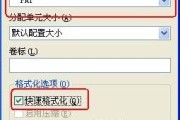
Symptoms When setting the file type for scanning and sending, the option for high compression PDF is grayed out and cannot be selected Reason for malfunction: To specify the PDF type as high compression PDF, it is necessary to use the specified settings to select it. Solution According to the requirements, you can choose any of the following settings to select high compression PDF 1. Select [Grayscale] or [Full Color] for [Original Document Type] under [Send Settings] 2. Select settings other than [Zoom in/out] under [Send Settings] 3. Select [200dpi], [300dpi], [400dpi], or [600dpi] for [Resolution] under [Send Settings] 4. Select settings other than [Preview] 5. Under [System Settings], specify [PDF/Fixed] as [Off] How to scan as JPEG settings attached TIFF/JPEG (single page): Create separate image files for each page Specify [Black and White] in [Original Type], and the scanned file will be sent in TIFF format Specify [Grayscale] or [Full Color] in [Original Type], and the scanned file will be sent in JPEG format |
Address of this article:https://073868.com/post/352.html
Copyright Notice:
For relevant infringements, reports, complaints and suggestions, please send E-mail:weixiuwang68@qq.com
Tags: #PDF #JPEG #picture #Scan #Resolution