|
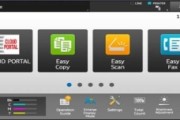
There are four ways to upgrade HP FutureSmart firmware: 1. Upgrade through Embedded Web Server (EWS) 2. Use a USB flash drive to upgrade in the Pre boot menu 3. In the ready state of the machine, go to the panel menu Standard control panel>Device Maintenance application and upgrade using a USB or USB interface hard drive 4. Upgrade through Web Services - Web Jetadmin software The HP FutureSmart firmware will no longer support the previous firmware upgrade methods: FTP, LPR, and Port 9100. Printing the configuration page allows you to view the firmware version of the current machine, as shown in the following example: Firmware Datecode: 20100831 Firmware Revision: 103067_104746 On the hp.com website, you can download the HP FutureSmart firmware for your machine, which is a. bdl file. Before upgrading, make sure that your machine can enter the Ready or Pre boot menu state. One Upgrade through Embedded Web Server (EWS) 1. Open a web browser page and enter the printer's IP address in the address bar. 2. In the troubleshooting option, select Firmware Upgrade. a. To upgrade firmware using EWS, you need to first set an EWS administrator password. b. In the Security option, set the Local Administrator Password and click Apply. 3. Browse to the location of the firmware. 4. Select the correct version of the firmware file and click Install. 5. Do not close the browser window or interrupt communication until EWS displays the confirmation page. 6. Select Restart Now, wait for the machine to restart to the ready state, print the configuration page to check the firmware version and confirm if the upgrade is successful. II In the ready state of the machine, go to the panel menu Standard control panel>Device Maintenance application and upgrade using a USB or USB interface hard drive Due to the different interfaces, the following are the upgrade methods for CP5525 and CM4540MFP. Upgrade method for CP5525: 1. Download the HP FutureSmart firmware from the hp.com website, unzip it, and copy the. bdl file to a USB drive or hard drive with a USB interface. On the control panel, press Home or OK to enter the menu. 3. Select Device Maintenance>USB Firmware Upgrade. 4. Insert a USB flash drive or hard drive with a USB interface containing firmware files, and press the OK button. 5. If there are multiple. bdl files in the USB flash drive or USB interface hard drive, select the correct version and press the OK button. 6. The screen will prompt to refresh to the old version, new version, or reinstall the same firmware version. Select the correct version and press OK The key. Do not interrupt during the entire upgrade process, as the machine will automatically restart after the firmware refresh is successful. 7. Wait for the machine to restart to the ready state, print the configuration page to check the firmware version and confirm if the upgrade is successful. Upgrade method for CM4540MFP: 1. Download the HP FutureSmart firmware from the hp.com website, unzip it, and copy the. bdl file to a USB drive or hard drive with a USB interface. On the control panel, select Device Maintenance. 3. Select USB Firmware Upgrade. 4. Insert a USB flash drive or hard drive with a USB interface containing firmware files, and press the OK button. 5. If there are multiple. bdl files in the USB flash drive or USB interface hard drive, select the correct version and press the OK button. Selecting Details will display the current firmware version of the machine and the firmware version on the hard drive with a USB or USB interface, which can be compared Compare whether the firmware version in the USB interface hard drive is newer or older than the current firmware version of the machine. Press the OK key to turn off this message. 6. The screen will prompt to refresh to the old version, new version, or reinstall the same version of firmware. If the version is correct, press Upgrade. Do not interrupt during the entire upgrade process, as the machine will automatically restart after the firmware refresh is successful. 7. Wait for the machine to restart to the ready state, print the configuration page to check the firmware version and confirm if the upgrade is successful. 3、 Upgrading with a USB drive in the Pre boot menu 1. Download the HP FutureSmart firmware from the hp.com website, unzip it, and copy the. bdl file to a USB drive. 2. Turn on the machine, and when all three lights on the panel, including ready, data, and attention lights, are on, press the Stop button to display the pre boot menu. 3. Press the key header to find the Administrator and press the OK key. 4. Press the key header to find Download and press the OK button. 5. Insert the USB flash drive with firmware files into the front USB port. If the prompt says' No USB Thumb drive files found ', insert the USB drive back into the USB port on the transformer board. 6. Press the key to locate the USB Thumb drive and press the OK button. If there are multiple. bdl files on the USB drive, select the correct firmware file and press the OK key. The firmware file will start copying, complete, and the entire download process will take about 10 minutes. After the firmware download is complete, press the back button until Continue is displayed, and then press the OK button. The machine will continue to start and reach the ready state. Such as CM4540MFP: 4、 The method of upgrading firmware in the Web Jetadmin user manual through Web Services - Web Jetadmin software upgrade is the same as the method of upgrading the previous machine. Link: https://pan.baidu.com/s/16nbM244aOYak3LxzlTWuVw [kkpay=15]Extraction code: 4html[/kkpay] |
Address of this article:https://073868.com/post/2674.html
Copyright Notice:
For relevant infringements, reports, complaints and suggestions, please send E-mail:weixiuwang68@qq.com
Tags: #laser printer #Firmware Upgrade Method #FutureSmart Firmware #EWS Upgrade