|
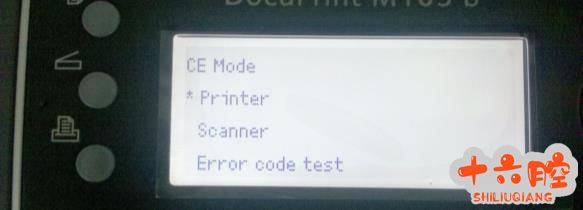
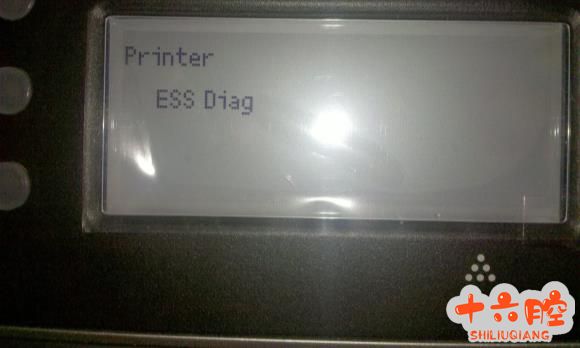
Fault phenomenon: The use of toner that is not suitable for this machine may cause the copy to become light or even completely white, which may be due to the lack of carrier caused by the use of toner that is not suitable for this model. It is necessary to add a carrier to solve this problem. Solution: 1. Prepare an empty toner cartridge, pour the carrier into the empty toner cartridge, then load the toner cartridge containing the carrier into the machine and rotate it to the locked position. Carrier number: 100L00010 2. Enter diagnostic mode (press and hold the up and down keys while turning on), the panel displays CE Mode, as shown below:
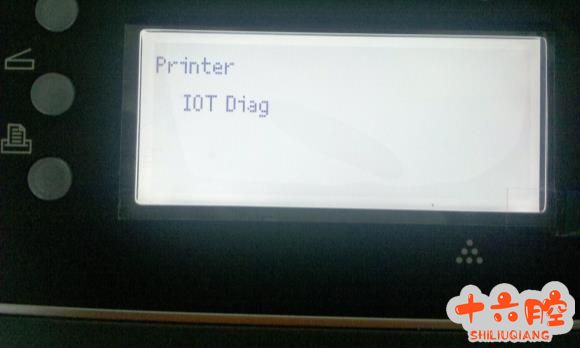
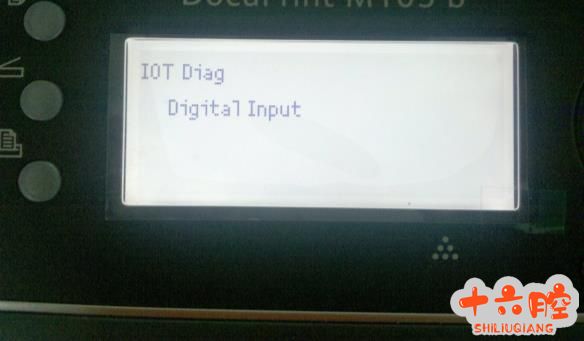
3. Press the Ok key - down key in sequence, and the panel will display IOT Diag, as shown in the following figure
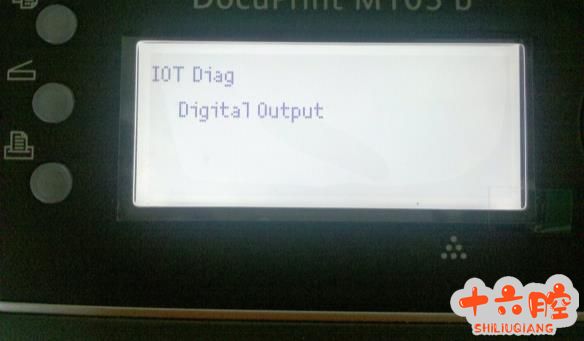
4. Press the Ok key - down key in sequence, and the panel will display Digital Output, as shown below,
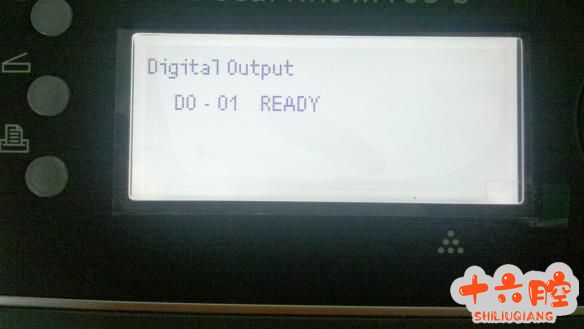
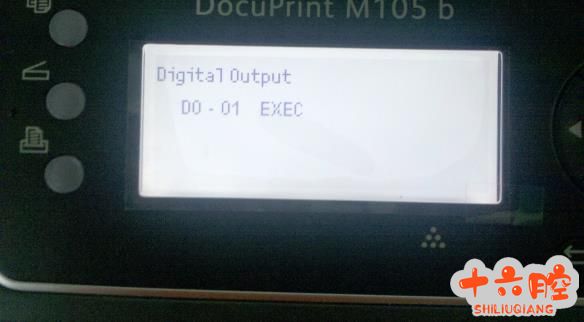
5. Press the Ok button, the panel displays DO-01 Ready, then press the down arrow to find DO-16 Ready, and press the OK button, the panel displays DO-16 EXEC. 6. Then press the up key to find DO-01 Ready, press the OK key, the panel displays DO-01 EXEC, and at the same time, hear the main motor rotate, as shown in the following figure,
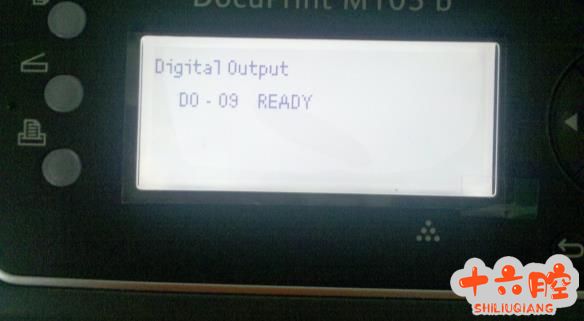
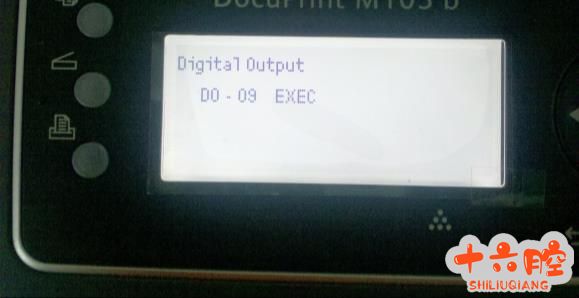
7. Press the down arrow key to find DO-09 Ready, then press the OK key. The panel will display DO-09 EXEC, and at the same time, you will hear the powder motor start rotating, as shown in the following figure,
8. Wait for both motors to rotate simultaneously for about 2 minutes until all the carriers are added to the developing chamber. Press the return button to stop the motors from rotating. 9. Turn on and off again, exit diagnostic mode, and install the original toner. If the machine prompts a shortage of toner, press the start button to add toner until the machine returns to normal. |
Address of this article:https://073868.com/post/2288.html
Copyright Notice:
For relevant infringements, reports, complaints and suggestions, please send E-mail:weixiuwang68@qq.com
Tags: #m255df #Add carrier #Toner cartridge #Original toner