|
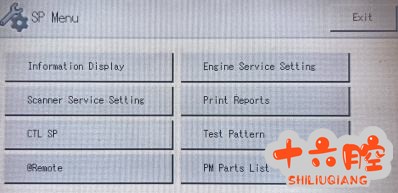
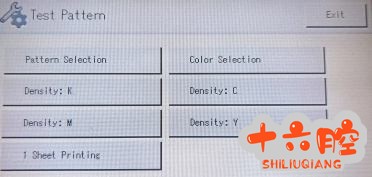
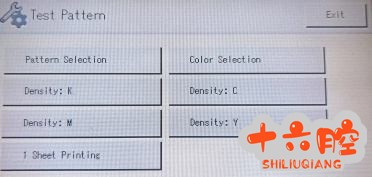
Phenomenon: When the color machine encounters image problems, it is necessary to distinguish which color channel is causing the problem. The following steps can help the repairman determine the fault. Maintenance process: Print full format test images of each monochrome through maintenance mode 1. Enter maintenance mode: clear/stop -107- color start [kkpay=6] 2. Select "Test Pattern" and click on "Pattern Selection" as shown below
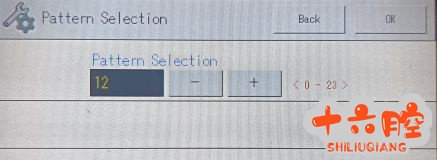
3. Set the pattern to "12" as shown in the following figure
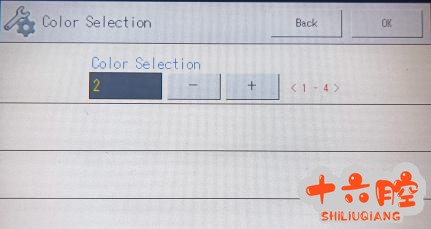
4. Press "Color Selection" to select the solid color (1: panchromatic; 2: magenta; 3: yellow; 4: cyan) to be printed, as shown in the following figure: [/kpay]
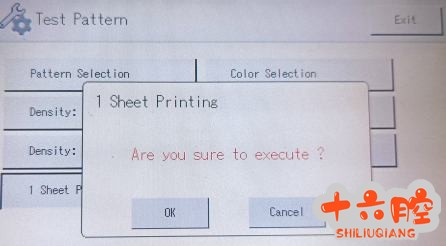
5. After pressing "1 Sheet Printing", a confirmation box will pop up. Please click "OK" and the machine will output the solid color you selected (in this case, the output color is magenta)
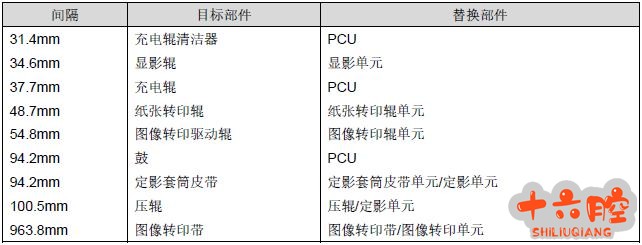
If you want to output a solid black color, you can set all color values to zero and leave the "Density K" value at 15; Select 1 (full-color) in 'ColorSelection', and black solid color can be printed at this time. 7. List the possible faulty parts at different distances in the solid color image as follows.
|
Address of this article:https://073868.com/post/1369.html
Copyright Notice:
For relevant infringements, reports, complaints and suggestions, please send E-mail:weixiuwang68@qq.com
Tags: #C2000 #Image #Colorful #test chart #magenta