|
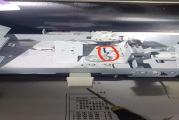
Symptoms J430: LCT1 Feed Sensor (Tray 1) J431: LCT1 Feed Sensor (Tray 2) Reason Cannot feed because the spring plug [A] installed on the back of the feed belt unit [B] (host or vacuum feed LCIT RT5100) is not connected to the connector [C]. Solution Connect the spring plug to the connector as follows. Operation steps when the main power switch is turned on 1. Install the feed belt unit [A], pull out the problematic paper tray, and check if there are any gaps in the frame at the position indicated by the red circle. No gaps, proceed to step 5 of the operation. There are gaps, operate 2 to 5 steps. 2. Close the paper tray. 3. Perform the following SP: Rotate the feed belt for 5 seconds and connect the spring plug to the connector.
4. Pull out the paper tray and confirm that there are no gaps in the rack. 5. Confirm that the screws securing the feed belt unit are tightened. Link: https://pan.baidu.com/s/1ITdFC0B6oZNZEGIhxX4OKw Extraction code: 6p27 |
Address of this article:https://073868.com/post/1253.html
Copyright Notice:
For relevant infringements, reports, complaints and suggestions, please send E-mail:weixiuwang68@qq.com
Tags: #J430 #J431 #Paper feed sensor #c7100 #C7110S