|
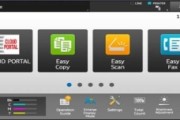
Fault reset steps executed through the fault reset button (1) Purpose If all faults occur and the machine's status cannot be cleared even after turning off and then turning on the main power switch, or turning on and then off the lower front door When a malfunction occurs, even if the main power switch is turned off and then turned on, or the lower front door is turned on and then off, the status cannot be cleared (2) Steps 1. Turn off the main power switch. 2. Hold down the Reset button and turn on the main power switch 3. Touch [Trouble Reset]. 4. Check to confirm that [OK] is displayed and has been reset 5. After turning off the main power switch, turn it on again after more than 10 seconds to check whether the machine starts normally. 3.2.2 Fault reset steps executed through automatic cancellation function (1) Purpose When a level B or C fault occurs, the MFP will automatically clear the fault and make the MFP ready When the automatic fault cancellation function is enabled, once a fault occurs and is automatically cleared, the fault detection information will be displayed on the screen and the fault will be automatically cleared If the fault persists after performing the automatic cancellation operation 3 times, a general fault code display screen will appear (2) Steps 1. In [Service Mode] ->[System 2] ->[] ->[Internal Error. Auto Cancel] Select [Yes] for the fault level where the automatic cancellation operation has been applied (The default setting for Level C is [Yes].) 2. Touch [OK] and turn off the main power switch, then turn it on again |
Address of this article:https://073868.com/post/642.html
Copyright Notice:
For relevant infringements, reports, complaints and suggestions, please send E-mail:weixiuwang68@qq.com