|
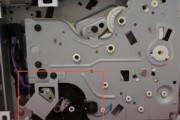
imageRUNNER ADVANCE C3530 imageRUNNER ADVANCE C3525 imageRUNNER ADVANCE C3520 imageRUNNER ADVANCE C3530G imageRUNNER ADVANCE C3525G imageRUNNER ADVANCE C3520G Topic: The method of setting up mobile printing and scanning using the wireless hotspot function of the multifunctional machine. [Detailed Description] By using the following settings, it is possible to connect the multifunctional machine to one or more (up to a maximum of five) mobile devices at once. <通过复合机同时连接单台移动设备的方法> STEP1: Set up registration>parameter selection>network>select wired/wireless LAN>select "wired LAN". Topic: Countermeasures for the host to display error messages after installing the optional Single Pass DADF-A1 accessory. [Detailed Description] After installing Single Pass DADF-A1 on one iR-ADV C3530 host, it prompts to update the system version of the optional accessories when turned on. After clicking the "Update" button in the bottom right corner of the prompt screen, the machine automatically restarts; After restarting the composite machine, an error message "Standard partition update error, Storing updatelog" will appear, and the composite machine cannot complete the automatic update of the optional parts system version. Topic: Countermeasures for missing colors in printed color copies. [Detailed Description] The newly installed machine found a lack of yellow when printing color copies. Topic: Countermeasures for communication failure between multifunctional machines and wireless networks. [Detailed Description] The newly installed machine is connected normally through a wired network; Although it is possible to connect to a wireless network through wireless, it cannot be pinged with a PC. Checked the relevant network settings of the multifunctional machine and found them to be normal; Machine ping gateway is normal; But ping cannot reach the computer, and the computer cannot ping the machine either; Executed clearing count and MMI clearing, invalid. [Cause of Failure] Check the wireless router settings for issues. [Maintenance measures] After checking the wireless router settings, it was found that the "channel" setting value was "2". After changing the value to "6", the wireless network connection of the multifunctional machine was restored to normal. Topic: Countermeasures for printing copies with red stripes on the surface. [Detailed Description] The newly purchased machine suddenly shows red stripes in the main scanning direction on the surface of printed and copied color images during use. Topic: Measures to address the prompt 'Please reposition the original manuscript' when scanning with DADF. [Detailed Description] After the installation of the new machine, when using the automatic document feeder to scan and copy the original document, it will prompt "Please reposition the original document" and there will be no paper rubbing action. [Cause of Failure] The connection between DADF and the reading control board is inserted in the wrong position. When making plug connections in dimly lit areas, confusion can easily occur between two adjacent sockets [A] and plug [B] on the control board, leading to incorrect insertion. [Reminder] As shown in the following figure, the color of the [A] socket is white, the color of the [B] socket is light brown, and the color of the 2-pin plug is also white; The situation where the socket and plug colors are the same here may also interfere with the operator's judgment, leading them to believe that plugs and sockets of the same color should be plugged together. Topic: Countermeasures for authentication error prompts when printing department IDs on PC. [Detailed Description] The customer needs to use the ID department identification code for authentication and print it out. After completing the settings in the print driver properties on the PC, it was found that there was an authentication error prompt when printing the department ID on the PC, indicating incorrect input of account and password information. [Cause of Failure] At present, it is suspected that it may be a problem with the multifunctional machine system. [Maintenance measures] After initializing the data on the client's machine, its functionality was restored to normal. Topic: Countermeasures for machine prompts indicating full waste powder. [Detailed Description] After installing the new machine, the startup prompt shows that the waste toner is full. [Cause of Failure] The waste powder detection circuit board and sensor have fallen off from their original positions (as shown in the figure below). [Failure Phenomenon] The motion sensor cannot work properly and wakes up the machine in sleep mode. [Cause of Failure] The assembly position of the motion sensor is slightly offset, resulting in the inability to recognize the movement of the person. At this point, adjusting the sensitivity of the motion sensor to the highest level can also recognize the movement of the person. [Failure Phenomenon] Prompt fault code E602-1401. [Cause of Failure] SWAP error detected (temporary file/spare storage area). [Maintenance measures] Select COPIER>FUTURE>SYSTEM>CHK-TYPE>"2" in maintenance mode and execute "HD-CLEAR"; Then, turn off and then turn on the main power. [Failure Phenomenon] After the newly installed machine completes the copying and scanning operations, a prompt will appear saying "Scanning error occurred. Return the original manuscript to the correct order and re execute the job." In this case, no error code will be prompted, but a warning code of 850001850005 can be viewed in maintenance mode. On site execution of 'MN-CON Clear' in maintenance mode; Implemented 'Initialize all user data' in user mode, but could not troubleshoot. [Failure Phenomenon] Prompt error code E423-0001. [Cause of Failure] Detected access errors in SDRAM or errors during data checking in the reader controller circuit board. [Maintenance measures] After replacing the reader controller circuit board (FM1-Z885-000), the fault was resolved. [Failure Phenomenon] Black lines appear on the surface of printed and copied images. [Cause of Failure] The loosening of the driving gear of the ITB cleaning component (as shown in the figure below) caused the failure of conveying waste powder inside the component, resulting in the blockage and overflow of waste powder. [Failure Phenomenon] When installing a new machine and using DADF to scan the original manuscript, there is a paper jam with code 0049; The fault persists even after replacing the entire DADF. [Cause of Failure] The control board of the host reading department is faulty. [Failure Phenomenon] Printing a color document revealed a lack of red color. [Cause of Failure] Laser component malfunction. [Maintenance measures] Replace the laser components with new ones. [Failure Phenomenon] New machine installation prompts error code E733. [Cause of Failure] The flat cable connection of the laser component is loose. [Maintenance measures] Reconnect the flat cable of the fixed laser component. [Failure Phenomenon] Prompt error code E996. [Cause of Failure] Suspected system error caused. [Maintenance measures] After performing a full cleaning, reinstall the system. [Failure Phenomenon] The output speed of the multifunctional printer suddenly becomes very slow, about 10 sheets per minute. [Cause of Failure] The paper type of A4 paper box has been modified to "heavyweight paper", resulting in a significant decrease in print output speed. [Maintenance measures] After changing the paper type of the A4 paper box to "regular paper", the problem was solved. [Failure Phenomenon] After the installation of the new machine, when scanning the original manuscript with the document feeder, the machine prompts "Put the original manuscript back in the correct order...". [Failure Phenomenon] Multi page WODR document, including text and tables, requires manual printing. After selecting manual printing in the printing preferences, the output effect shows that the table position is horizontal (the user requires the table position to be vertical). [Failure Phenomenon] The startup screen is black and the power indicator light is on. [Detailed Description] The machine had error code E614 before experiencing a black screen, but after replacing the FLASH PCB with a new one, the machine was able to start up normally at that time. But the machine can only run normally for about 5 minutes and will automatically restart with a black screen. Check the ERR Report for records of E733 and E732. After replacing the motherboard with a new one, it was found that there was an odor on the motherboard, and the fault did not change. [Failure Phenomenon] When using a multifunctional machine for copying and scanning, black and white lines were found on the copy. Check the data cable connection between the CCD unit and the reading control board, and confirm that the connection is normal; Execute R-CON Clear, but the fault persists. [Failure Phenomenon] After updating the device system firmware to V46.18, the power light flashes abnormally when starting up (the screen does not light up, the power board has startup noise, and it shuts down for seconds). [Cause of Failure] Suspected system firmware writing error. [Maintenance measures] After re executing the system firmware write, the machine returned to normal. [Failure Phenomenon] The device alternately prompts error codes E020-04A8 and E020-02A8 during use. [Cause of Failure] The black developing component, red developing component, and DC control board all malfunctioned simultaneously. [Maintenance measures] Simultaneously replace the black developing component (FM1-B267-010), red developing component (FM1-B265-010), and DC control board (FM1-X932-000). [Failure Phenomenon] The newly installed machine found that the printed black image has a gray background and the black color is light, while other color images are normal. [Cause of Failure] The black contact of the secondary transfer high-pressure plate has poor contact. [Maintenance measures] After disassembling and reinstalling the secondary transfer high-pressure plate, the fault disappeared. [Failure Phenomenon] The newly installed machine has experienced a paper jam with code 020B. [Cause of Failure] Suspect that the spring strength of the pre positioning sensor lever (PS22 sensor) is insufficient. [Maintenance measures] Pre position sensor lever (PS22 sensor) spring elasticity, (increase) pressure. [Failure Phenomenon] The newly installed 3520 machine cannot start normally after booting up, and cannot enter the upgrade interface. The test results after entering self-test mode are as follows. [Cause of Failure] Main controller circuit board malfunction. [Maintenance measures] Replace the main controller circuit board (FM1-P537-000) with a new one. [Failure Phenomenon] The printed color copy is missing blue, but does not prompt a fault code. [Cause of Failure] Laser component malfunction. [Maintenance measures] Replace the laser component (FM1-A101).Link: https://pan.baidu.com/s/1HYM6LccBQtGOAXwkhUH_XA Extraction code: r4kl After copying this content, open Baidu's internet disk mobile phone App, which is more convenient to operate. |
Address of this article:https://073868.com/post/5983.html
Copyright Notice:
For relevant infringements, reports, complaints and suggestions, please send E-mail:weixiuwang68@qq.com