HP M305, M329, M405, M429, M454, and M479 Series Hidden Menu Instructions
Model: M479dw,M479fnw,M479fdw,M454dw,M329dw,M329dn,M429dw,M429fdn,M429fdw,M305 Series, M405 Series, M454nw,M454dn
The use of a new firmware system, maintenance mode and the traditional pro series is completely different, the following is the relevant content of the finishing and translation
Hide Menu Categories
Support Menu
- This menu provides important product information for remote support personnel and guides the user through some diagnostic or setup functions for the printer.
Engineering Menu
- Engineering menu, designed for on-site service support engineers, can provide important product information, configure equipment, product report and product test functions. service Menu is one of the sub-menus. Generally, on-site support engineers only need to enter service menu, and other sub-menus need to be applicable under 2L guidance.
Enable/disable Menu
- Turn on/off some features of the printer
Boot Screen Menu
- The startup screen menu is usually used when the printer has been unable to start normally or to access the hidden menu of the printer under some special circumstances to solve some special soft faults.
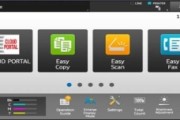
Key steps to enter the hidden menu- Support Menu (return-return-return-return)
- Service Menu Access via Engineering Menu (Home-Back-Home-Home)
- Enable/Disable Menu-Open the function of closing the printer (Home-Return-Home-Return)
- Boot Screen Menu-Boot Menu
- 4.3-inch screen: press and hold the return button to start the machine. when the screen is black, press home page-return-home page-home page in turn.
- 2.7-inch screen: press and hold the help button to start the machine. when the screen is black, press return-help-return-return in turn.
Non-touchscreen- Support Menu (Cancel-Return-Cancel-Cancel)
- Service Menu access via Engineering Menu (return-cancel-return-return)
- Enable/Disable Menu Menu-Turn on the function of closing the printer (Cancel-Return-Cancel-Return)
- Boot Screen Menu
- Press and hold the confirm and cancel buttons at the same time to start up. when the printer starts up to a black screen, press left-right-left-left in turn.
Unconventional error code description- This firmware will report errors other than the conventional xx.yy.zz, and the inkjet machine type
- This kind of error usually occurs. If it is a temporary error, it can be considered as 49.xxxx, and the machine can be restarted.
- If it occurs frequently, it is recommended that:
- Upgrading the Firmware to the Latest Version
- Enter "reset menu" to reset
- None of the above is valid, and the technology is upgraded.
After replacing the motherboard with a non-touch screen, the user requires to write back the serial number. How to operate?- When the printer is ready, press "Back, Cancel, Back, Back" to enter the Engineering Menu"
- Select service menu
- Select "system configuration"
- Select Enter serial number"
- Use the "Back" button to select the position, use the left and right arrows to change the value
- Sometimes it will be found that the serial number is 12 bits. In this case, press the left and right arrows continuously to select a null value.
- When the input is complete, press OK to return.
- The new serial number takes effect after the printer is restarted.
Firmware file decompression instructions
- Do not double-click directly, and do not select with right arrow
- Open the compression software first, and then select the downloaded firmware to decompress in the compression software.
- Find the firmware file with the suffix ful2 in the compression package
- Unzip this file to a specified directory or USB stick
Make the boot menu upgrade U disk
"MFG MODE" is displayed after POST"
Reason:
- The wrong setting of the printer is "MFG MODE". You need to enter the boot menu and set the printer to "User Mode"
Steps:
- Shut down, press the OK and cancel keys and don't let go, turn on the power key, wait for about 3 seconds, when the ready green light and warning red light are on at the same time, and the screen becomes dark, release your hand. Then press the "left", "right", "left", "left" button to enter the boot menu. Press the right button to see the MENU menu and click OK to enter, then continue to find, when the Force User Mode menu appears, click the OK button. The printer will restart automatically.
- Or when MFG MODE is displayed, you first try to press the right arrow button. If the MENU menu can appear, click OK to enter and follow the above instructions. If not, follow the instructions above to enter the boot menu.
River series laser printer blue screen after power-on self-test error "B305A901"
New firmware system for laser printers M454/M479/M305/M405/M329/M429 series
Fault phenomenon:
- After POST, the blue screen will report an error: B305A901, the blue screen may report an error: 00000018 or 00000002 after restarting, and the blue screen will report an error: B305A901 after repeated restarting. As shown on the right.
Solution:
- Enter the startup menu mode and select Full Reset. If an error is still reported, select OOBE reset.
- If the above operation is invalid, download the latest version of firmware from the official website, copy the FLU2 file obtained after decompressing the firmware to a clean U disk, and use the startup menu mode to upgrade to the latest version of firmware through the U disk;
- If an error is still reported after upgrading the firmware, perform step 1 again.
Start menu:
- The entry method and use instructions of the startup menu are shown in the instructions on the previous page.
Service Menu-Service Menu
Link: https://pan.baidu.com/s/1f3Sg81d5h_sAdlkPP9YycQ
Extraction code: t1na
|