|
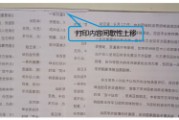
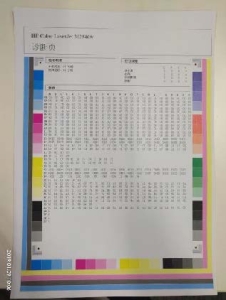
Need to print a red headed file or a red seal. For the issue of color discrepancy between the printer and the customer's desired color, we can usually try to assist the customer in conducting the following adjustment tests: 1. To print the diagnostic page and print quality page of the printer, first confirm whether there is any abnormality in the color imaging of the printer hardware itself, and whether there is insufficient toner cartridge or ITB problem. It is best to ask the customer to send us the printed sample for confirmation. It is possible that the customer is not sure what the correct sample looks like and cannot recognize whether the color currently printed by the machine is correct.
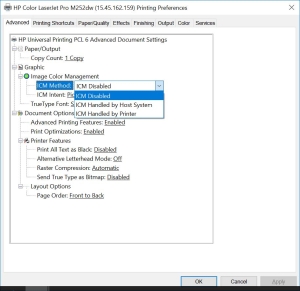
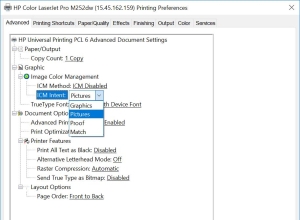
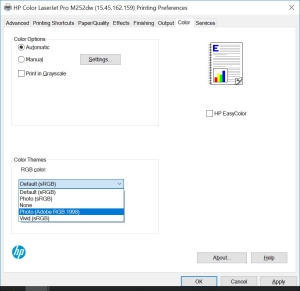
If it is confirmed that the color rendering of the printer hardware itself is not a problem, we can also try adjusting the driver and color density on the printer hardware to make the output color closer to the color that the customer wants. Position adjusted in drive:
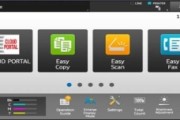
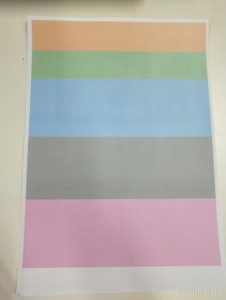
How to adjust the toner concentration on the printer screen: 1. First, enter the printer's Secondary Service menu Method: Touch the settings button, then hold down the position between the home and help keys, and press the return arrow to enter. 2. Find the Color Cal. option, then select the Adjustments Color option. After entering, there are 4 items below Contrasts,Highlights,Midtones,Shadows。 Each project has four CMYK color adjustment densities under it. The highest carbon powder concentration value is 5. If you feel the color is dark, you can reduce the carbon powder concentration. If you feel the color is light, you can adjust the concentration. It is recommended to adjust the same settings for each color in the four items. After setting, print a test sample to confirm if the adjustment is effective. |
Address of this article:https://073868.com/post/4998.html
Copyright Notice:
For relevant infringements, reports, complaints and suggestions, please send E-mail:weixiuwang68@qq.com
Tags: #laser printer #The red seal is not red