|
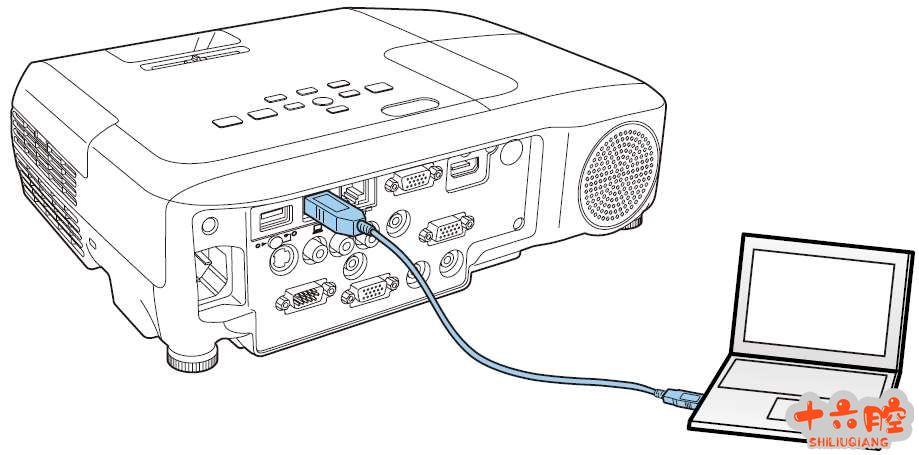
CB-1485Fi;CB-720;CB-725W;CB-725Wi;CB-735F;CB-735Fi;CB-800F;CB-972;CB-E01;CB-E10;CB-FH06;CB-FH52;CB-L200F;CB-L200SX;CB-L200W;CB-L200X;CB-X06;CB-X49;CB-X51 Topic: Upgrade Method of BIN Format Firmware Applicable models: All models with USB A/B interface or USB mini interface, the firmware extension is BIN format. 1. Using USB cable upgrade method 1.1. Download the firmware to your computer (note: do not change the name of the firmware, the firmware will not be uploaded after changing the name) 1.2. Connect the computer and projector with USB cable
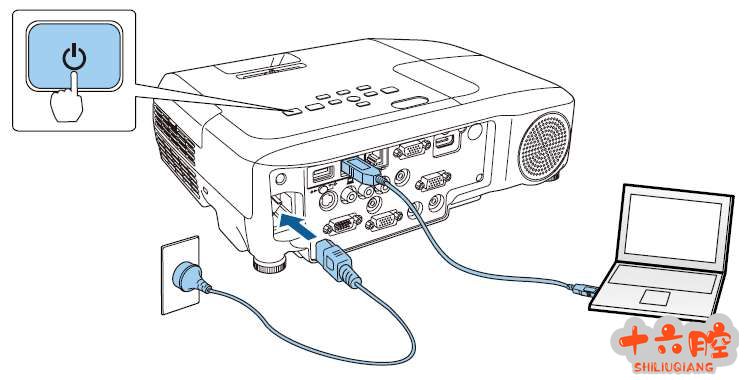
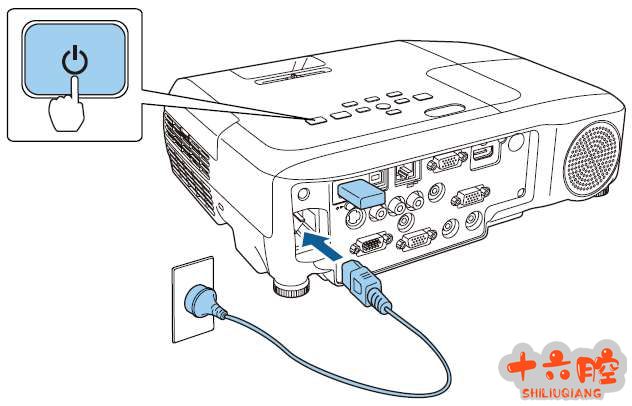
1.3. Press and hold the "Power" switch button while inserting the power cord into the projector power jack. When all the indicator lights are on, release the "Power" button
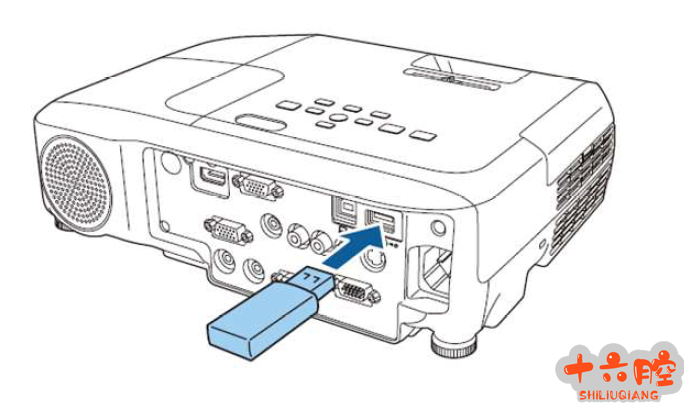
1.4. The computer will recognize a new mobile memory/U disk and copy the bin version firmware to the root directory of the memory (do not copy other files to the memory) 1.5. Remove the memory on the computer side after the copy is completed. 1.6. After unplugging the USB cable, all indicator lights of the projector begin to flash for firmware upgrade. After the upgrade is successful, the projector will automatically shut down and return to standby state. 2. Use U disk upgrade method 2.1. Download the firmware to the U disk (note: do not change the name of the firmware, the firmware will not be uploaded after changing the name) 2.2. Insert the U disk into the projector
2.3. Press and hold the "Power" switch button while inserting the power cord into the projector power jack. When all the indicator lights are on, release the "Power" button
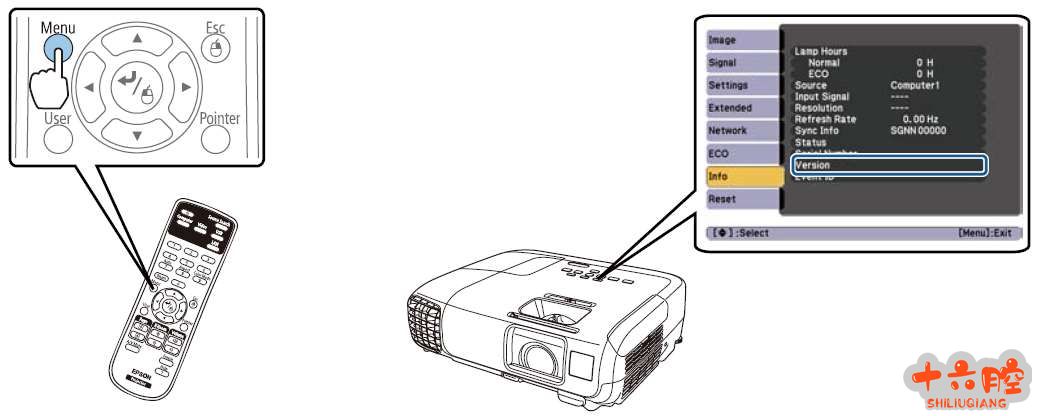
3. The upgraded version of the projector can be viewed at the following locations:
|
Address of this article:https://073868.com/post/4694.html
Copyright Notice:
For relevant infringements, reports, complaints and suggestions, please send E-mail:weixiuwang68@qq.com
Tags: #BIN #Epson Firmware Upgrade #Projector #CB-725Wi #CB-FH06