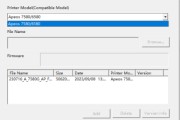
USB upgrade method: (recommended)First, download the firmware upgrade package
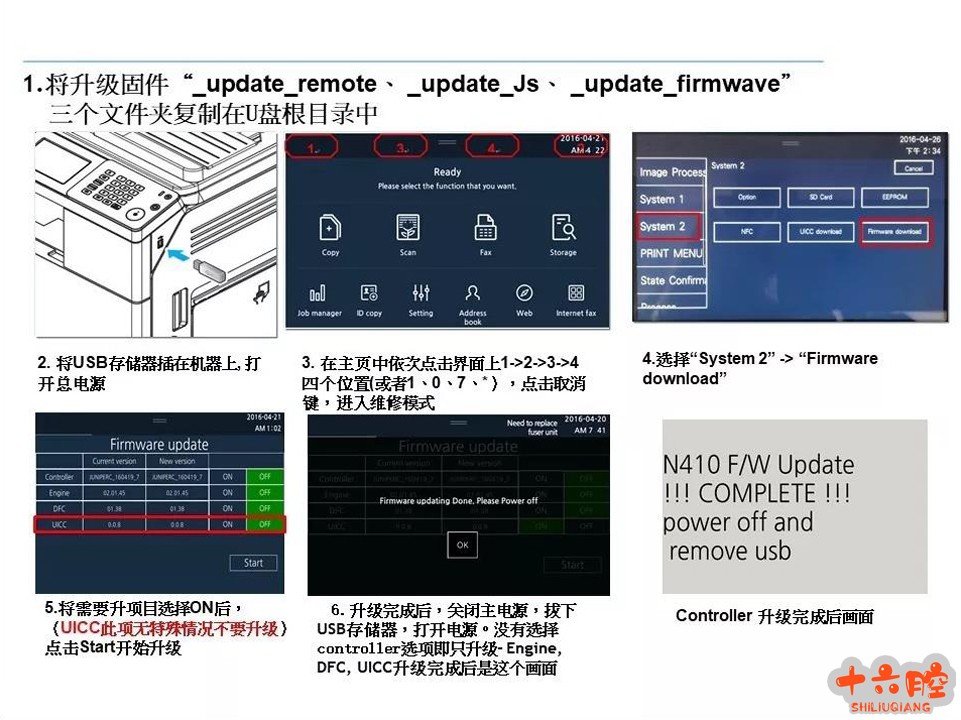
Upgrade process:1. Put the extracted three files into the root directory of the USB drive“_update_remote/_update_Js/_update_firmwave"2. Turn off the power of the copier, insert a USB flash drive into the copier, and turn it on3. In general, the copier directly enters the upgrade screen. If not, please enter the maintenance mode first Repair mode - System 2- Firmware download, enter the upgrade screen4. Select the option that needs to be upgraded. There are four upgrade contents for UICC. Do not upgrade this item unless there are special circumstances. It is recommended to upgrade the other three together Turn on the option that needs to be upgraded5. Click the 'start' button to enter the official upgrade process6. Wait for about 15 minutes for the upgrade to complete. As shown in the last interface of the following figure.7. Shutdown, unplug USB drive, power on, complete
Precautions:1. Set up DNS for the network to ensure connectivity to the external network.2. It is recommended not to perform any printing, copying, or other tasks during the upgrade process.Upgrading steps and methods:Settings - Administrator (sindoh # 123) - Basic Settings - Firmware Update - Network Upgrade - Confirmation - Confirmation of New and Old Version Appearance - Upgrade or Not1. If the existing version is newer than the network version and does not require an upgrade, restart the copier;2. The existing version is older than the network version and needs to be upgraded. Press any key to start the upgradeLink: https://pan.baidu.com/s/1SWacJWuJrFZpxEBpa5wHUA Extraction code: bj4z
|
Address of this article:https://073868.com/post/4446.html
Copyright Notice:
For relevant infringements, reports, complaints and suggestions, please send E-mail:weixiuwang68@qq.com