|
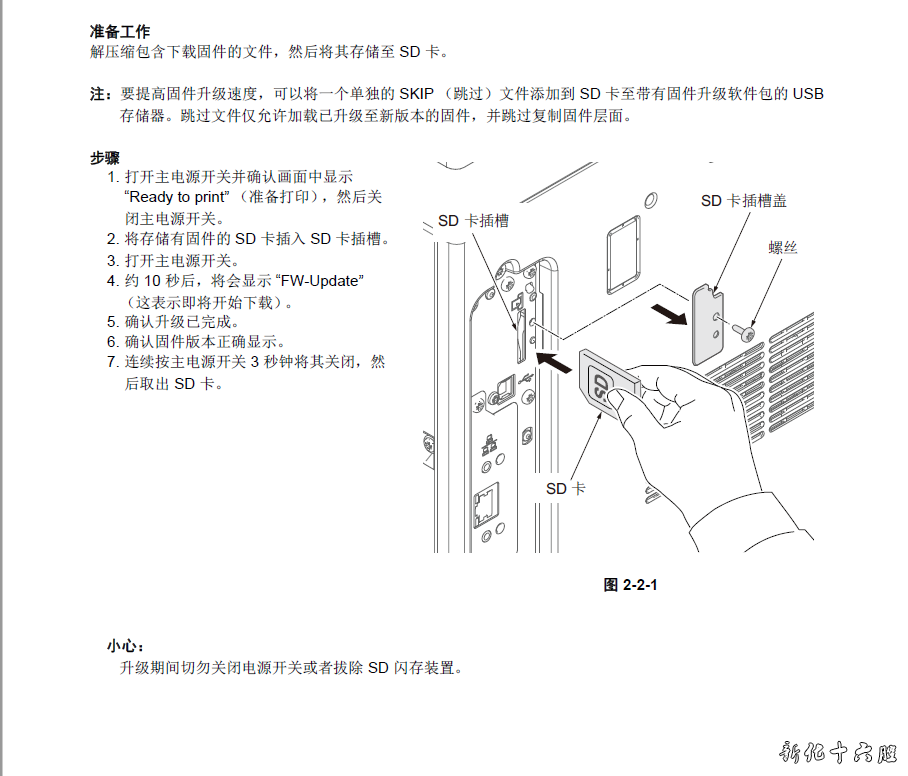
Please follow the steps below to upgrade the firmware. Preparation work Extract the file containing the downloaded firmware and store it on the SD card. Note: To improve the firmware upgrade speed, a separate SKIP (skip) file can be added to the SD card to a USB with firmware upgrade software package Memory. Skipping files only allows loading firmware that has been upgraded to a new version, and skips the firmware copying layer. Steps 1. Turn on the main power switch and confirm that "Ready to print" is displayed on the screen, then turn off the main power switch. 2. Insert the SD card containing firmware into the SD card slot. 3. Turn on the main power switch. After about 10 seconds, "FW Update" will be displayed (indicating that the download is about to begin). 5. Confirm that the upgrade has been completed. 6. Confirm that the firmware version is displayed correctly. 7. Press the main power switch continuously for 3 seconds to turn it off, then remove the SD card.
|
Address of this article:https://073868.com/post/4227.html
Copyright Notice:
For relevant infringements, reports, complaints and suggestions, please send E-mail:weixiuwang68@qq.com