|
When a customer uses Office 2010 Word to print a document and selects to print 2-5 pages in the printing options, it is expected to output 4 sheets, but the actual MFP output is 12 sheets. The customer replaced the printing of other documents and the output is normal.
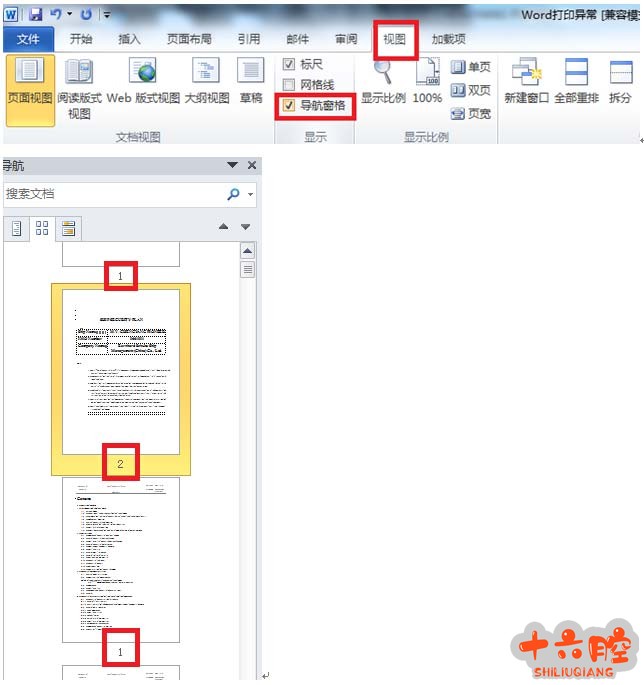
Reason 1. Changing to another version of the print driver is invalid 2. Replace with another MFP to print this document, invalid 3. Replace Office 2003 Word to print this document, it is invalid Printing other documents is normal, and it is preliminarily judged to be related to the client's Word document settings. In the "View" tab of the toolbar, select "Navigation Panes". When viewing the page, it is found that the customer's page numbers are repeatedly rearranged (1, 2, 1). It is preliminarily judged that the problem is caused by the "Section" setting of the customer's document.
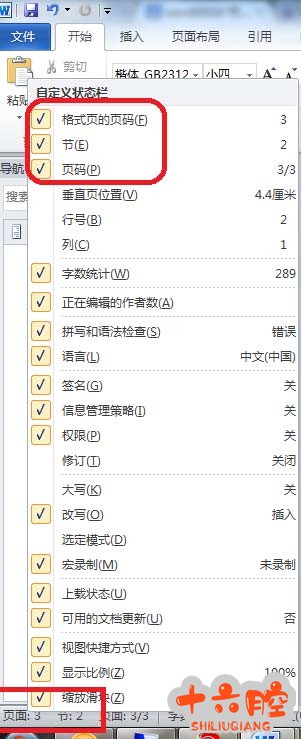
Solution Select the corresponding page for printing according to the section settings, or delete the "section" setting Method - Print the required pages according to the section settings 1. Right click on the bottom left corner of the page and select "Page Number of Format Page", "Section", and "Page Number".
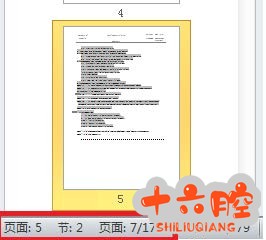
2. Select any page and view the section it belongs to. For example, the page in the following example is the 5th page of the 2nd section, but in the entire Word file, it belongs to the 7th page
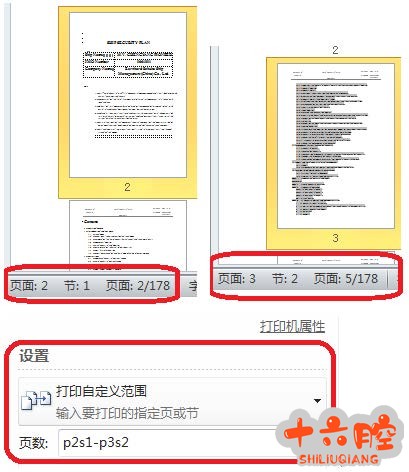
3. Find the page that the customer needs to print, and specify the start and end pages for printing according to the "Page S Section". For this example, the printing range that needs to be specified is: p2s1-p3s2
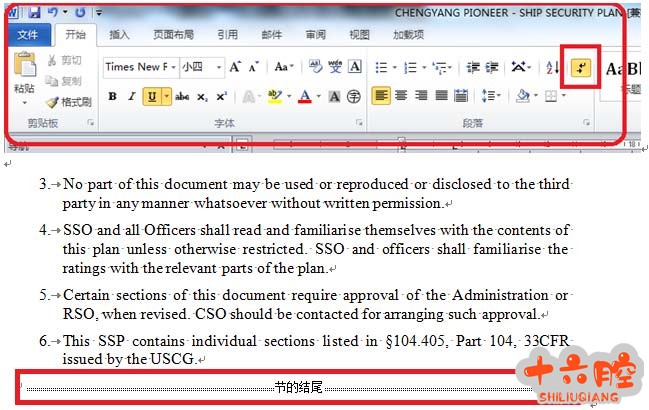
Method 2- Delete 'Section Break' 1. Save the file as a dedicated file for printing 2. Click the "Show Hidden Tags" button in the toolbar to see section tags in the document
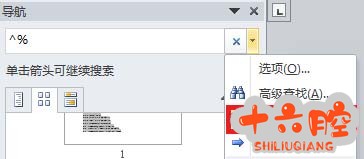
3. Use the shortcut key "Ctrl+F" to bring up the search dialog box, select "Replace"
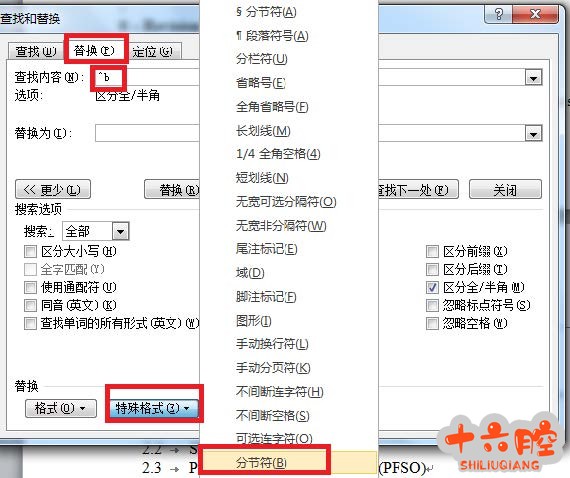
4. In Advanced Search, select Replace and choose "Special Format ->" Section Break "
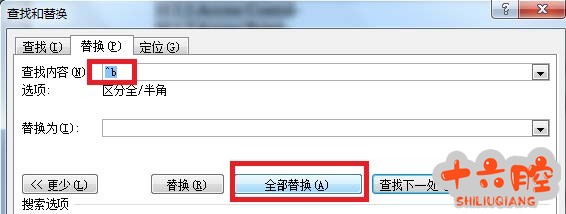
5. Confirm the settings as shown in the figure and click "Replace All" to proceed
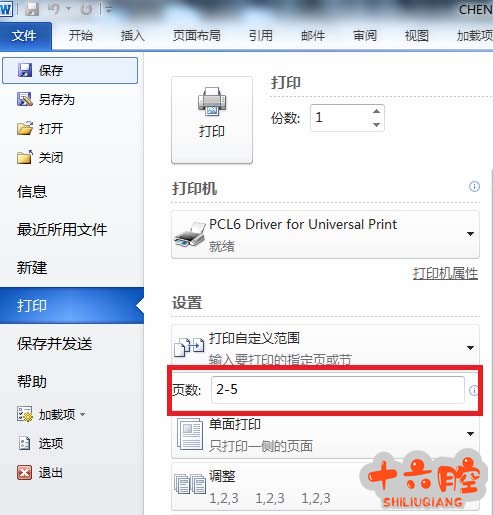
6. Check the page encoding in the document, it has been encoded normally. Customers can specify the printed page range using 2-5 in "Printing Custom Range:" Attention: As this method destroys the original section settings in the document, it is essential to make a backup of the source document. |
Address of this article:https://073868.com/post/3224.html
Copyright Notice:
For relevant infringements, reports, complaints and suggestions, please send E-mail:weixiuwang68@qq.com
Tags: #word #Print #Page number