Ricoh Pro C7100 C7110S Printing Paper Gray Causes White Dot
Visitor3560
Paper dust causes white spots ReasonThe paper dust on the surface of the paper causes white spots. SolutionClean the paper tray, transfer timing roller, and guide plate in the transfer paper path (host, A3LCT, hand fed paper tray)
Clean the transfer guide from the feed tray. Generally, this operation can solve the problem.Note
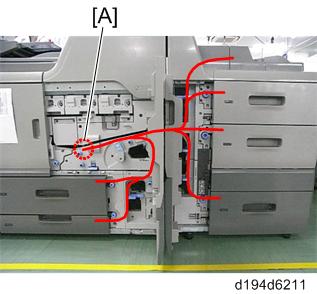
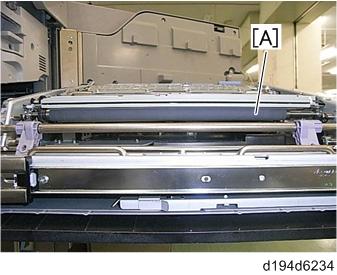
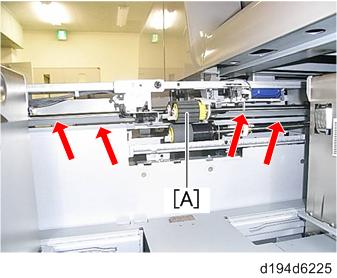
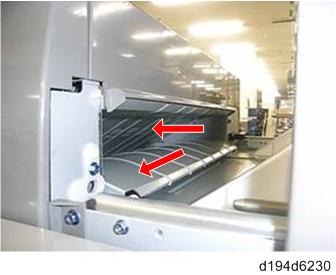
As shown in the figure below, the paper transfer path of the host (paper trays 1 and 2), RT5090 (paper trays 3 to 5), and the hand fed paper tray to the transfer roller [A]
Clean the transfer printing unit
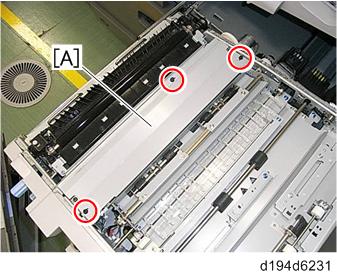
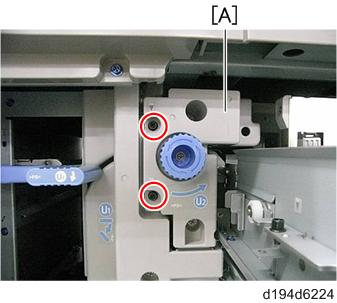
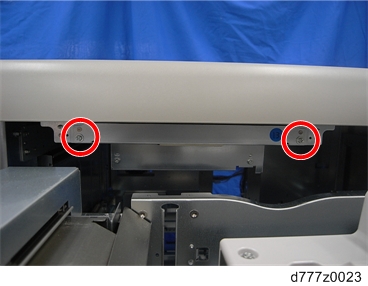
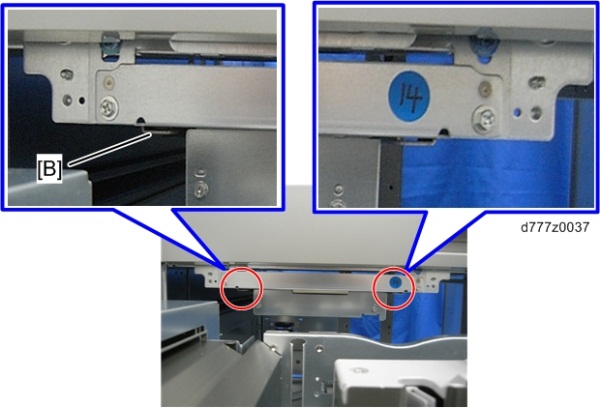
Pull out the PTR unit and remove the bracket [A](
x3).
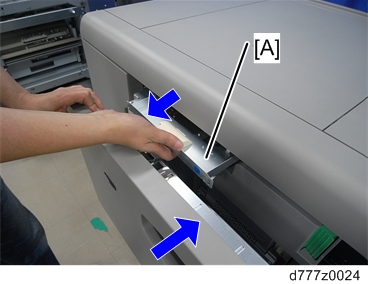
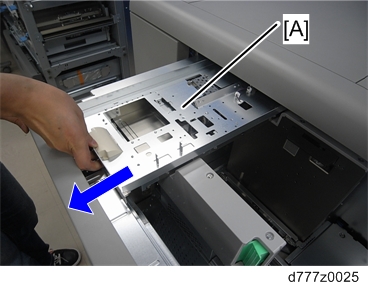
Remove the paper tray with dust(
x2).
Wipe the paper dust with a dry cloth
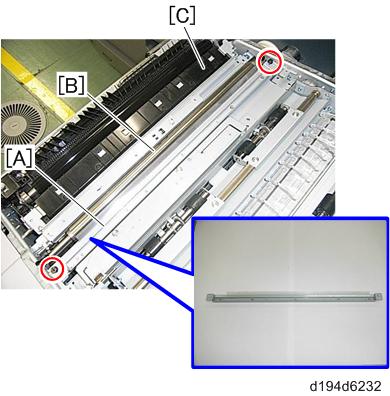
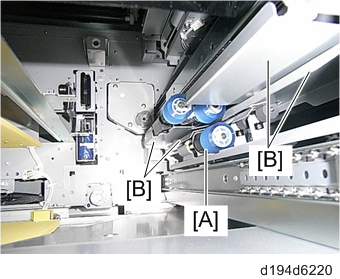
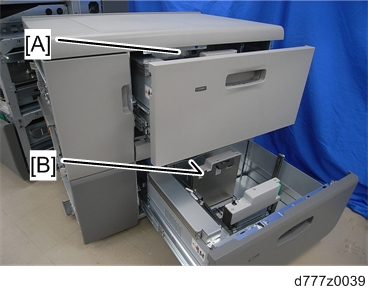
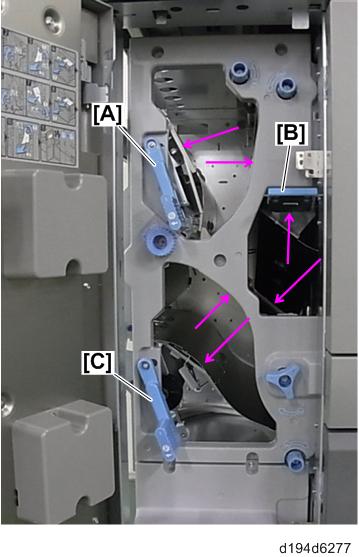
Clean the paper tray [A], transfer timing roller [B], and feed guide [C]
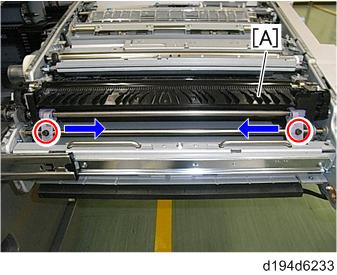
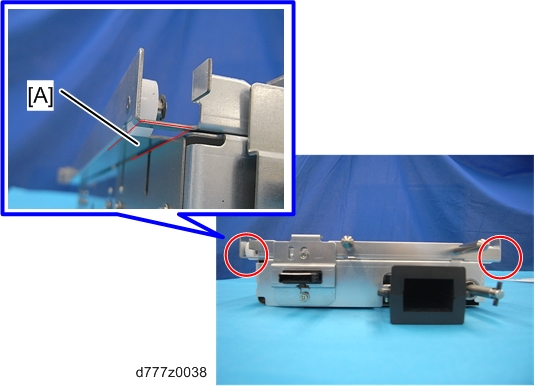
Remove the transfer unit(
x2).
Clean the paper transfer roller with a dry cloth
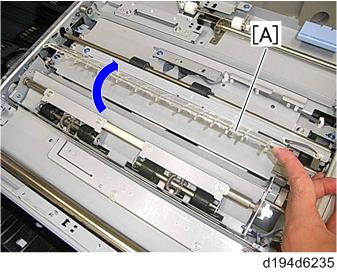
Open and clean the transparent cover plate [A]
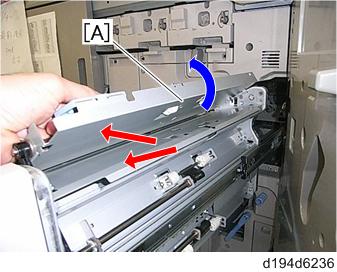
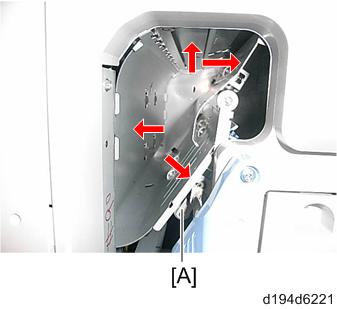
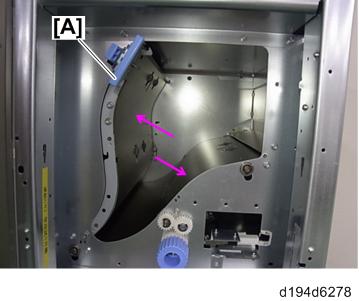
Open and clean the paper feed guide [A]
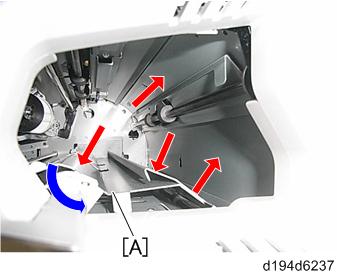
Open and clean the vertical transfer guide plate
Reorganization unit
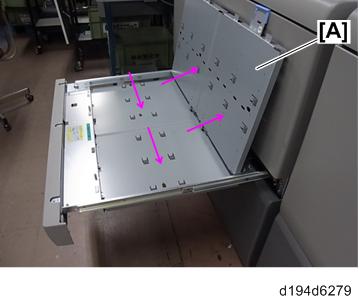
Clean the main machine paper tray unit
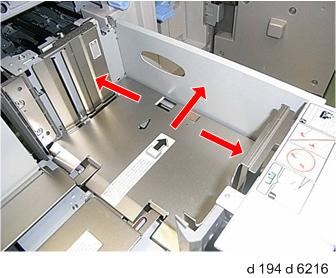
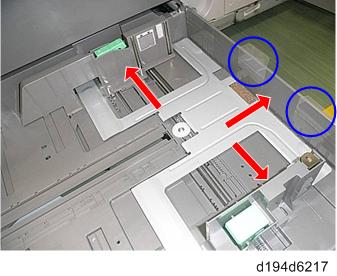
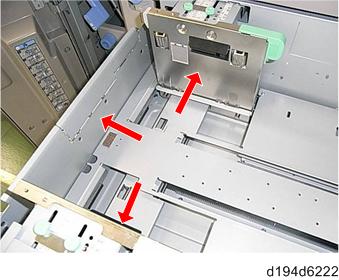
Pull out tray 1 and clean the side and end panels
Pull out tray 2 and clean the side and end panels
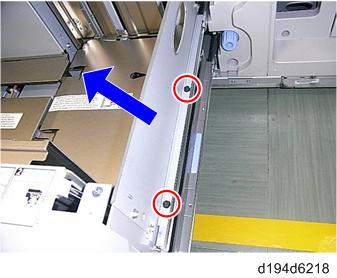
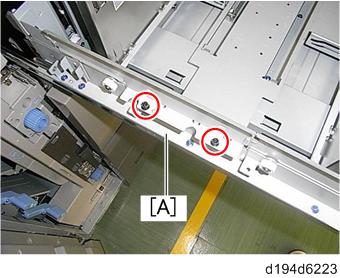
Remove the screw from tray 1 and take off the serial tray (on the right side) (
x2)
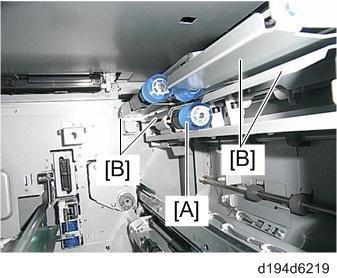
Clean the paper roller [A] and guide plate [B] of paper tray 1
Raise paper tray 2 and remove it, clean the paper roller [A] and guide plate [B]
Open the vertical transfer plate [A] and clean all the plates
Reorganization unit
Clean LCIT (RT5090) paper trayTaking paper tray 1 as an example
Clean the side and end panels of paper tray 3
Pull out the feed tray and remove the front guide of the tray [A](
x2).
Pull out the paper feeding unit [A](
x2).
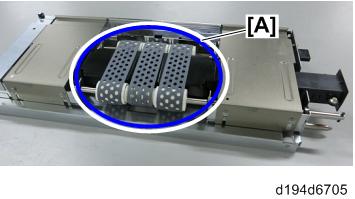
Clean the feed roller [A] and guide plate
If paper trays 2 and 3 are also used, follow steps 1-4 above.
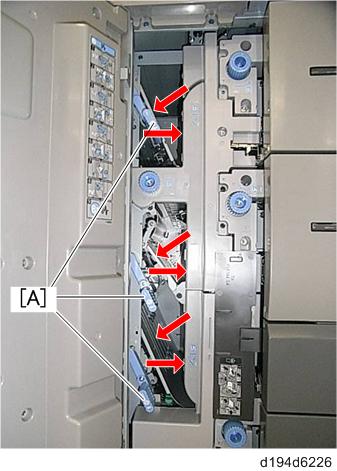
Open and clean the paper transfer guide plate [A]
Reorganization unit
Clean the feeding unit of the vacuum fed LCIT (RT5100)Paper feeding belt unit
[A]: Tray 1 Paper belt unit
[B]: Paper tray 2 feed belt unit
Open the tray.
Unlock the paper feeding belt unit(
x2).
Grasp the knob of the paper feeding belt unit [A] and half close the paper tray
Pull out the feed belt unit [A] and paper tray
Note
The feed belt unit must be pulled out horizontally relative to the paper tray to ensure that the belt is not damaged.
When placing the feed belt unit back, remember to align the guide plate [A] and guide rail [B] on the left side of the paper tray, and gently lift them up.
Place the pulled out paper tray face down and wipe the paper feeding belt with a damp cloth [A]
Open and clean the front cabin door, open/close the guide plate [A], [B]
Close the guide plate and front cabin door
Clean the bridging unit
Open the front compartment door of the relay unit, then open and clean the guide plate [A]
Close the guide plate and front cabin door
Pull out the horizontal paper feeding unit, open the guide plate [A] and clean it
Close the guide plate and place it horizontally back into the feed unit
Clean the hand fed paper tray (BY5010) feeding unit
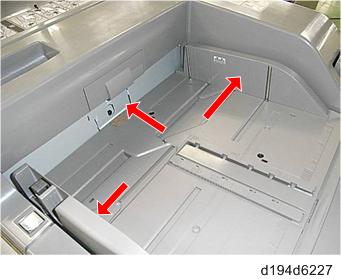
Clean the side and end panels of the paper feeding unit.
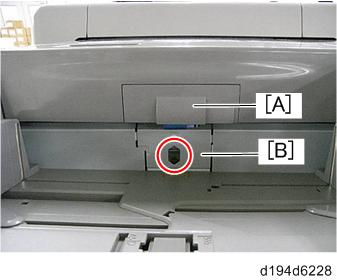
Remove the paper roller cover [A] and flip the roller cover [B](
x1).
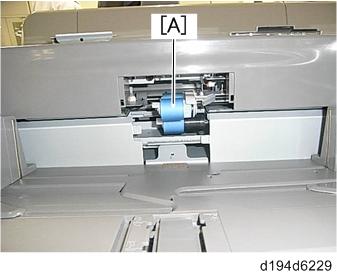
Clean the paper feed roller
Slide the paper tray to the right and clean the feed guide.
5-804-001 paper feed motor 15-804-002 paper feed motor 25-804-003 paper feed motor 35-804-004 paper feed motor 45-804-005 hand feed paper feed clutch...
Q: One piece of original powder is printed less than 2 kilometers. When the machine is turned on, it is found that there is a lot of powder leakage on the transfer roller. After removing the development and cleaning ID sensor, will the 3103Vsp value 0.07 be too low and a large amount of powder will be added?...
A collection of firmware upgrade methods for all current Ricoh models. Note: No matter which of the following methods is used for firmware upgrade, do not shut down during the upgrade process, this operation will cause damage to the machine hardware. 2. A3 models firmware upgrade SD card production...
Ricoh copier basic principle, imaging principle and copier foundation, color basic principle 1, imaging principle and copier foundation 2, color basic principle 3, machine test sample printing 4, parts manual use training materials 5, dot map use method m...
Symptoms: Keith Deyer cp6303c Machine Printing Times Failure E-02 Causes: 1. Paper table motor problem and poor paper table drive; 2. The height sensor of the paper table and the lower limit sensor of the paper table are not good. 3. Bad motherboard. 4. Harness connection...
Issue: Exporting a profile configuration that contains a large number of workflows and groups does not start the download and cannot be displayed. Occurring condition: A user attempts to export a profile configuration that contains a large number of workflows and groups. Reason: Due to the group and work being processed...
Ricoh IM C320F_P C375_M C320FW Solution to Drum Unit Setting Error after Memory Clear Symptoms When Memory Clear: Clear All (SP:5-801-001) is performed, for example, due to forgetting to log on...