Ricoh Pro C7100 C7110S Jam Display J 430, 431,445, 446, 460 or 461
Visitor3130
Show J 430, 431,445, 446, 460 or 461 This problem is caused by a variety of reasons. Take the following measures.Note
Non-coated paper in the feed tray fails to feed, try again through the tray in the main machine, replacing the vacuum feed LCIT.
In Custom Paper Settings, change the 117: [Switch Paper Load Upper Limit] from Low [Low] (18mm) to High [High] (12mm).
If the problem occurs again, go to the next step.
Manually adjust the upper paper load limit (-1mm).
If the problem occurs again, go to the next step.
Manually adjust the upper paper load limit (-2mm).
If the problem occurs again, go to the next step.
Manually adjust the upper paper load limit (-3mm).
If the problem occurs again, go to the next step.
Clean the paper feeding belt.
Manually adjust the upper paper load limit
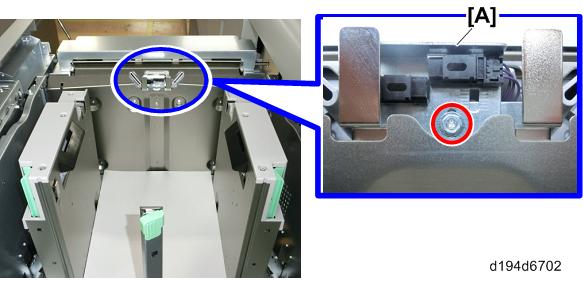
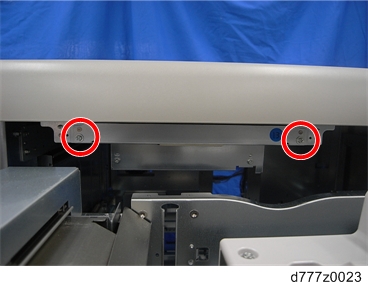
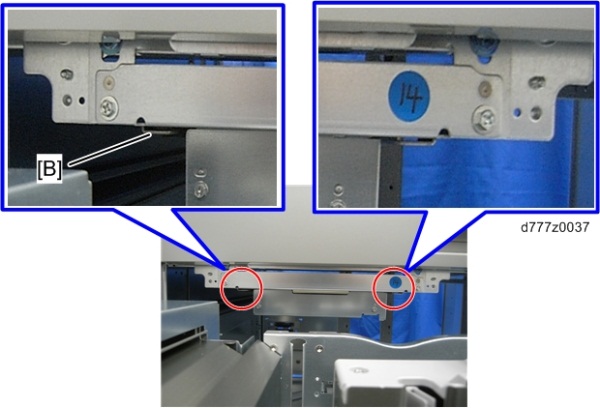
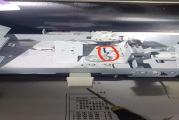
Loosen the screws on the sensor bracket [A].
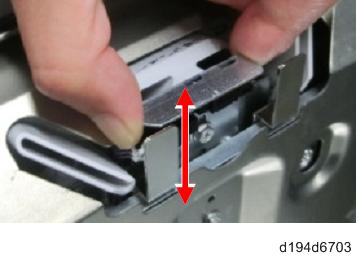
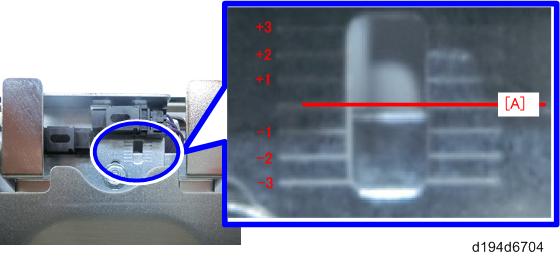
Use the scale shown in the figure below to slide up and down to adjust the sensor bracket.
Note
Reference position slide 1mm, position [A].
Tighten the sensor bracket screws.
Note
When tightening the screws, hold the sensor bracket to prevent sliding.
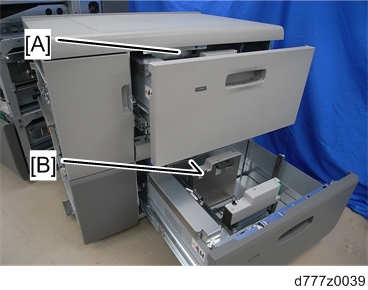
Clean the paper feed belt[A]: Tray 1 Paper belt unit
[B]: Paper tray 2 feed belt unit
Open the tray.
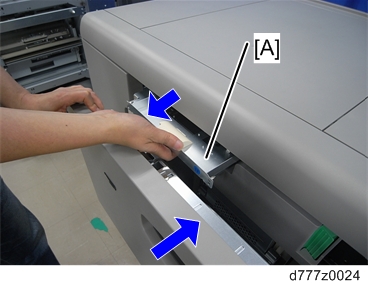
Unlock the paper feed belt unit (
x2).
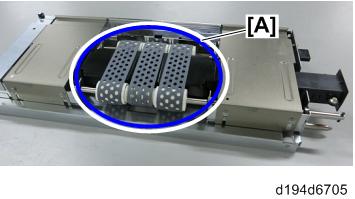
Hold the feed belt unit handle [A] and half close the tray.
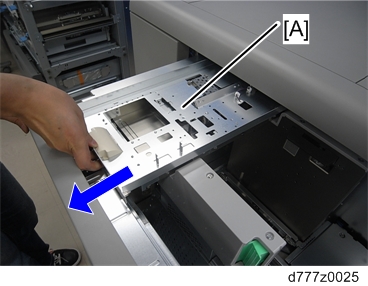
Pull the paper feed belt unit [A] together with the tray.
Note
The feed belt may be damaged if it is caught on the sidebar or other parts. Therefore, pull out the feed belt unit horizontally relative to the tray.
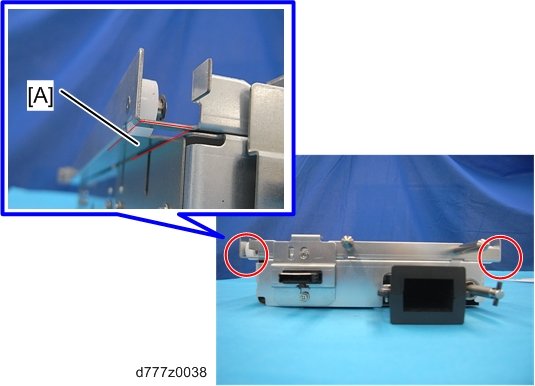
To avoid damaging the paper feed belt, put the paper feed belt back to its original position and align the left and right guides [A] with the stiffener [B] of the paper tray.
Turn over the paper feed belt unit and wipe the paper feed belt [A] with a damp cloth.
5-804-001 paper feed motor 15-804-002 paper feed motor 25-804-003 paper feed motor 35-804-004 paper feed motor 45-804-005 hand feed paper feed clutch...
Q: One piece of original powder is printed less than 2 kilometers. When the machine is turned on, it is found that there is a lot of powder leakage on the transfer roller. After removing the development and cleaning ID sensor, will the 3103Vsp value 0.07 be too low and a large amount of powder will be added?...
A collection of firmware upgrade methods for all current Ricoh models. Note: No matter which of the following methods is used for firmware upgrade, do not shut down during the upgrade process, this operation will cause damage to the machine hardware. 2. A3 models firmware upgrade SD card production...
Ricoh copier basic principle, imaging principle and copier foundation, color basic principle 1, imaging principle and copier foundation 2, color basic principle 3, machine test sample printing 4, parts manual use training materials 5, dot map use method m...
Symptoms: Keith Deyer cp6303c Machine Printing Times Failure E-02 Causes: 1. Paper table motor problem and poor paper table drive; 2. The height sensor of the paper table and the lower limit sensor of the paper table are not good. 3. Bad motherboard. 4. Harness connection...
Issue: Exporting a profile configuration that contains a large number of workflows and groups does not start the download and cannot be displayed. Occurring condition: A user attempts to export a profile configuration that contains a large number of workflows and groups. Reason: Due to the group and work being processed...
Ricoh IM C320F_P C375_M C320FW Solution to Drum Unit Setting Error after Memory Clear Symptoms When Memory Clear: Clear All (SP:5-801-001) is performed, for example, due to forgetting to log on...