|
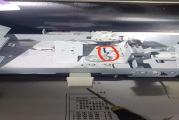
Symptom: 8310 failed to import from the paper library to create a new paper library. Choosing to overwrite or add new failed, indicating that the process was not completed correctly. Reason: Paper library files may be damaged. Solution: Delete all existing paper libraries and reinstall the paper library firmware. (The old paper library originally selected for the cardboard box needs to be deleted) Steps: 1. Download the latest paper library firmware corresponding to the model, format the SD card, and copy it into the newly created ROMDATA folder. 2. After completely shutting down, insert the SD card into the repair card slot 2 of the machine backpack. 3. After booting up, it will automatically enter the upgrade interface. After selecting the paper library firmware upgrade, shut down and remove the SD card before booting up. After reinstalling the paper library, the newly created paper library was imported from the library, and the parameter settings were completed normally without any further prompts. Experience: It is important to pay attention to the latest firmware of the machine and the NVRAM that can be backed up when the machine is working properly. Download and carry it with you for future use. |
Address of this article:https://073868.com/post/1320.html
Copyright Notice:
For relevant infringements, reports, complaints and suggestions, please send E-mail:weixiuwang68@qq.com
Tags: #8310 #Paper library #Failed to create new paper library #NVRAM