|
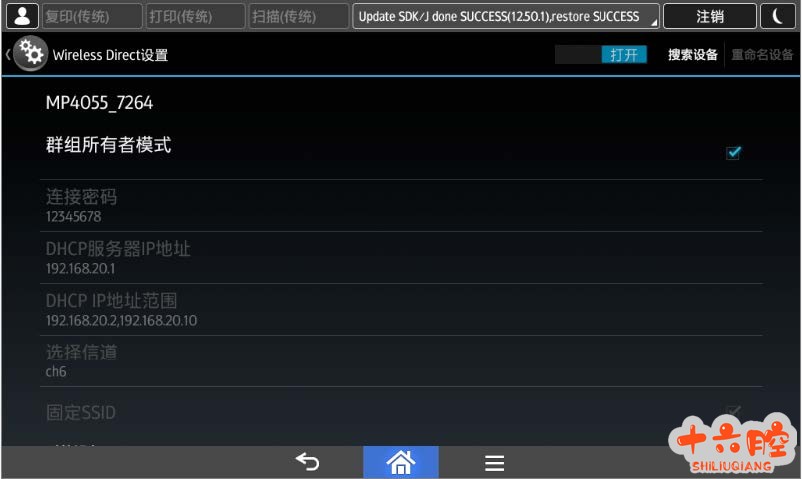
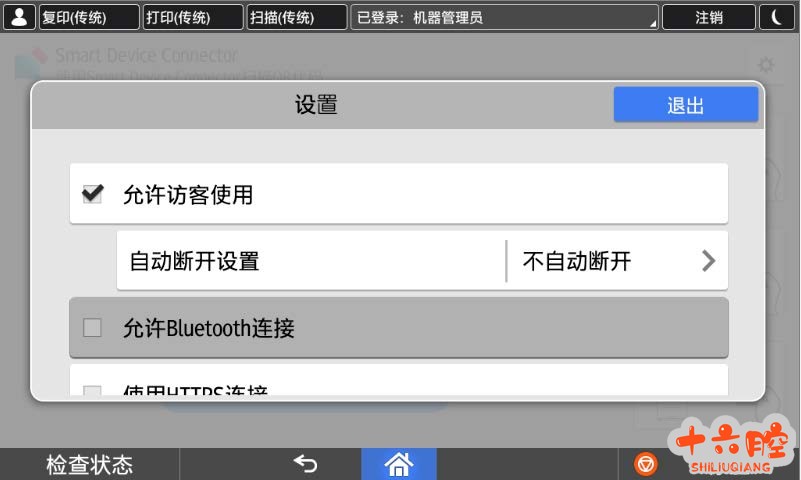
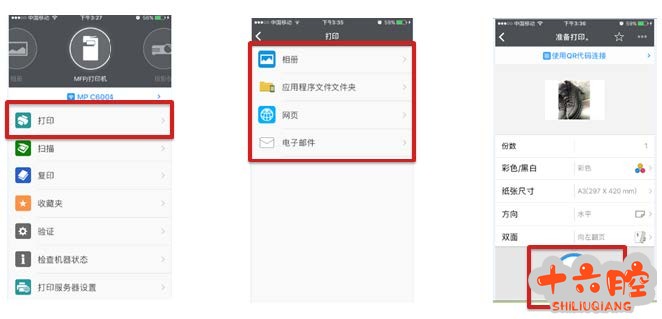
Ricoh copier MP2555, C2004 series and other SOP models mobile phone printing method Symptoms: Customer's mobile phone printing cannot be achieved Solution: 1. Click on "User Tools" - "Screen Features" - "Wireless Direct Settings" - "Open Network" 2. Set the connection password (the original password is difficult to remember) 3. Select "Group Owner Mode" (as shown in Figure 1) 4. Open the "connector" application in the panel - click on "Settings" in the upper right corner of the application - select "Allow visitors to use" - select "Do not automatically disconnect" (as shown in Figure 2) 5. Download software: iPhone users can search for the corresponding software download (Ricoh Connector) in the App Store Android users please go to the technical space to the communication box to download the Connector installation file by themselves 6. Connect your phone to the WiFi network shared by the MFP and connect it directly to the network 7. In the "Connector" app, select a document or photo, click "Print Settings" to set up printing, and then click "Read QR Code" to scan the QR code on the machine for printing. (As shown in Figure 3 below)
|
Address of this article:https://073868.com/post/1308.html
Copyright Notice:
For relevant infringements, reports, complaints and suggestions, please send E-mail:weixiuwang68@qq.com
Tags: #Mobile printing #sop #2555 #2004