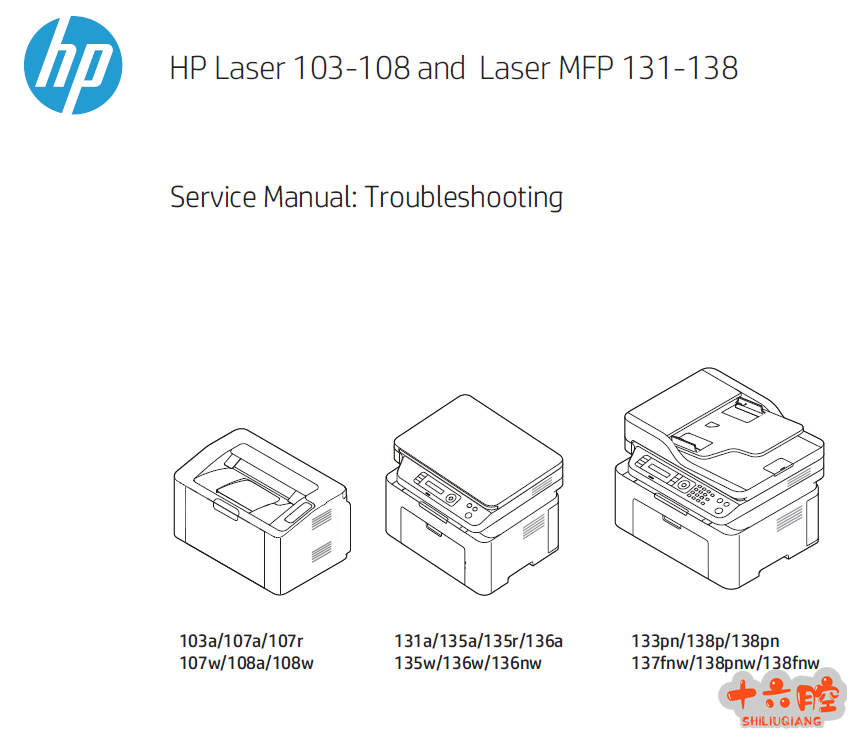
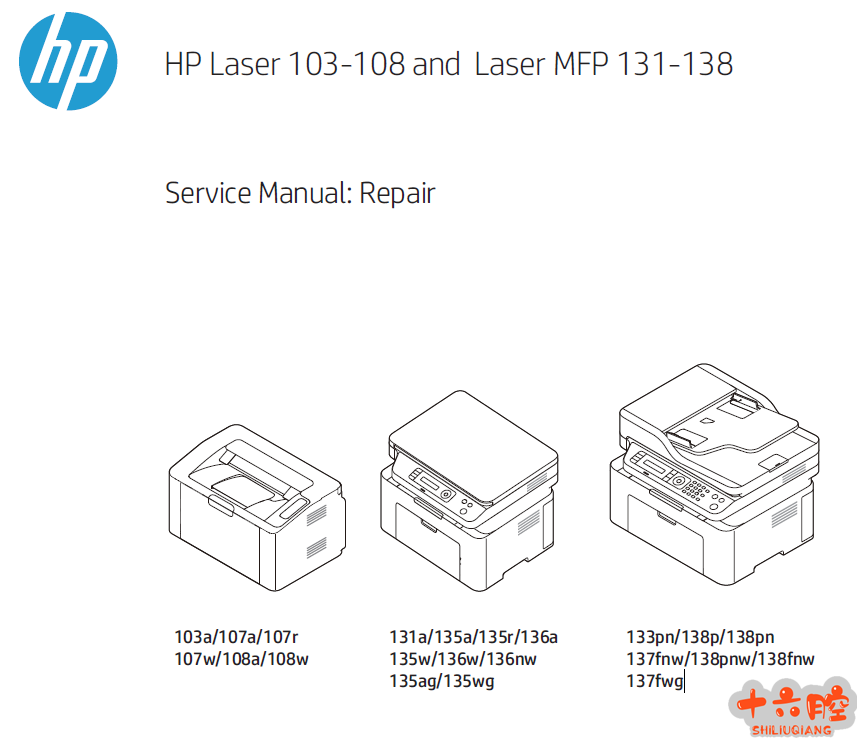
HP Laser 103_108_MFP 131_138 English disassembly manual, troubleshooting repair manual
Come back soon.3880
103a/107a/107r,107w/108a/108w,131a/135a/135r/136a,135w/136w/136nw,135ag/135wg,133pn/138p/138pn,137fnw/138pnw/138fnw,137fwg Disassembly and Maintenance Manual Laser 103_108_SFP 131_138_ Principle and Fault Code Diagnosis and Maintenance Manual
Laser 133/136/178/179: After replacing the motherboard or selecting the wrong country or region, it prompts that the consumables are incompatible Problem description: - Reminder of incompatible consumables, unable to select Chinese menu Reason: - The area where the printer was not selected resulted in consumables not being recognized and there were no Chinese options available Solution: - Enter Tech mode and select Clear All Mem in Data Setup After selection, there will be a prompt to select Country, choose China After restarting, it works normally
Description: This method is also applicable to other Transformers series laser machines with display screens after replacing the motherboard Please refer to the following instructions for the processing of Transformers single function laser printers without display screens
Transformers series all-in-one machine (133136138178179) adjustment method for unclear copying of content with slight background gray or light color Enter the "Copy Function Menu" and find the "Adjust Background" option inside. The default option is "Off". Please select different options according to the following method. 1. There is slight bottom dust or slight wrinkles, and dirt marks have been copied. Please change the option to "Clear Level 1" or "Clear Level 2"; 2. Copy invoices and other original receipts with some light fonts and unclear images. Please change the option to "Enhanced Level 1" or "Enhanced Level 2".
How to use the Transformers all-in-one machineDistinguish the error message prompt for door opening Related models: 131a/133pn/136a/136w/136nw/136wm/138p/138pn/138pw/178nw/179fnw
Several explanations for the Transformers series printer Laser 108133136138
136138108 series cannot print media with a length of 24cm
Upgrade the official website to the latest firmware version to solve this problem
138pnw wireless cannot automatically recover after restarting
If the standard external microphone is not installed, the wireless connection will not automatically reconnect after restarting
Default username and password for the network version of EWS
Firstly, confirm if there are any signs of disassembly or assembly on the toner cartridge, and if it is an original consumable. If it is, it will not be reported for repair; If it is original consumables, replace the power board HP Laser MFP 133、How to determine whether it is a power board fault or a motherboard fault when the 136 and 138 series black and white laser all-in-one machines are not powered onFault DescriptionThe printer is not powered onCause of the failureIf a faulty main control board (motherboard, interface board) (also known as motherboard, interface board) or power board causes the printer to not power up, the following steps need to be taken to confirm whether it is a fault with the main control board (motherboard, interface board) or the power board. Laser mfp 133、 The main control boards of the 136 and 138 series were modified without authorization Users will replace the two chips on the back of the main control board as shown in the red circle on the left to crack the printer's recognition of the toner cartridge. During maintenance, please pay attention to checking Are there any traces of re soldering between these two chips; Is the pin of the chip silver, as the pin of the replaced chip may be gold.
Laser 103、 108, 133, 136, and 138 falsely report paper jams when printing on different sizes of paper Problem Description Users need to print different sizes of paper on the same printer, such as A5 and A4. When the user finishes printing the A5 document and then prints the A4 document, the printer prompts a paper jam and the paper stays at the output port. Cause of the problem When changing the paper, the user did not remove all the paper from the paper box, but only added different sizes of paper that needed to be printed to the paper box, or removed the paper that did not print, causing the printer to mistakenly believe that the paper in the paper box was still the paper that was just printed, resulting in a false alarm of paper jam.
Solution When replacing paper, it is necessary to pull out all the paper in the paper box for a certain distance and then reload it, so that the printer will re recognize the paper instead of assuming it is the same size as the previously printed paper.
HP Laser 100 Printer series HP Laser MFP 130 Printer series HP Color Laser 150 Printer series HP Color Laser MFP 170 Printer series 100/130/150/170 series installation/component introduction/error code/service mode/fault case