|
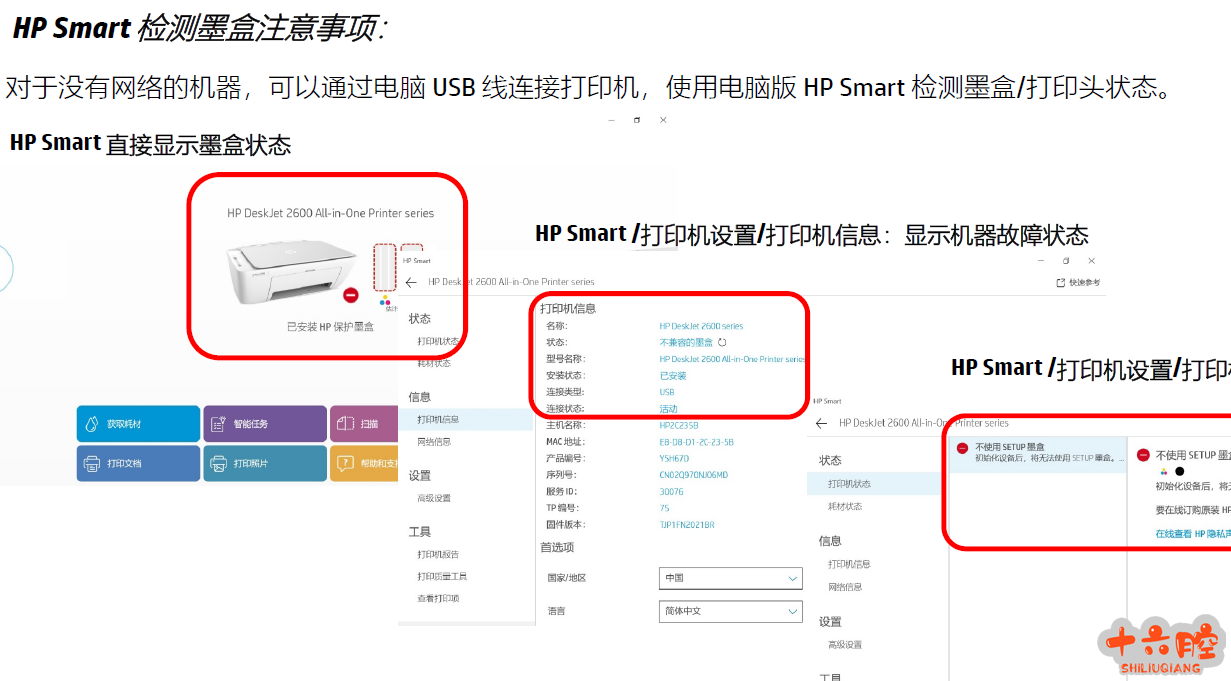
HP does not have ink cartridge failure for touchscreen machines Column based on HP DeskJet 2622 Detecting ink cartridge malfunctions through HP Smart 1. For printers without touch screens, the panel only shows that the ink cartridges are unavailable, but the specific cause of the malfunction cannot be confirmed 2. Check the printer status through the computer driver (printer assistant); When there is a malfunction in the ink cartridge, it may not be possible to detect the status of the ink cartridge 3. HP Smart detection is convenient and fast, without the need to install printer drivers 4. Enable wireless direct connection function for printer 5. Get wireless direct connection password 6. Connect your phone to the printer via wireless direct network or the printer's initial network (setup network) 7. HP Smart adds wireless direct printer 8. Detect the status of ink cartridges (print heads) through HP Smart HP Smart Check Ink Cartridge Precautions: For machines without a network, you can connect the printer via a computer USB cable and use the computer version of HP Smart to detect the status of ink cartridges/print heads. After installing both ink cartridges, check the status of the ink cartridges. Installing only one ink cartridge may result in inaccurate recognition status. Single ink cartridge usage: During use, there will be a prompt for ink cartridge issues. After installing two ink cartridges and completing the print head calibration, use a single ink cartridge for printing. Print TAP10 report page: Printing method: Refer to the information on FTP (HP inkjet printer combination key list) The OfficeJet model can print status reports, check the values of fields such as HP, Use, and SS: You can also check the values of fields such as "USE and HP" through the "Print and Scan Security/Printer/Consumables Level" menu item:
Ink cartridge malfunction (unrecognized) detection/repair steps: 1. Confirm the specific cause of ink cartridge failure through HP Smart and identify the authenticity of the ink cartridge 2. Check for dents or ink leakage contamination on the pen holder board contacts, and clean the metal contacts of the pen holder board and ink cartridge 3. Upgrade the printer firmware to the latest version on the official website 4. Check the connection between the pen holder cable and the motherboard 5. Replace the test ink cartridge (print head) 6. Measure/replace pen holder cable (such as Smart Tank 500 and 600 series machines: black print head not recognized) 7. Replace the pen holder board 8. Replace the motherboard Link: https://pan.baidu.com/s/1Ei0Z8TlRvU1dCICPMvdrYA Extraction code: 10i6 |
Address of this article:https://073868.com/post/5280.html
Copyright Notice:
For relevant infringements, reports, complaints and suggestions, please send E-mail:weixiuwang68@qq.com
Tags: #2622 #HP Video #Ink cartridge #Ink cartridge malfunction #Touch screen