|
HuiOperation instructions for replacing the motherboard of a regular inkjet printer
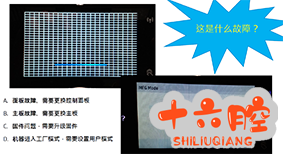
A. Panel malfunction, control panel needs to be replaced B. The motherboard is faulty and needs to be replaced C. Firmware issue, firmware upgrade required D. Machine enters factory mode, user mode needs to be set Operation instructions after replacing the motherboard After replacing the motherboard, inkjet products should complete the following operations: 1. Set from factory mode to user mode (mandatory operation) 2. Enter machine serial number information (mandatory operation) 3. Settings: Country/Language/Paper Size (mandatory) 4. Perform NVM initialization (not mandatory) Set user mode: Machines without touch screens: power on by combining buttons, plugging in a power cord, and turning on. Equivalent to printer NVM initialization. Machines with touch screens: enter the Engineering Menu and select user mode under UnderwareMenu/Boot Code Menu Enter machine serial number: Machines without touch screens: via the Galileo mobile app/Galileo tool. Machines with touch screens: Go to the hidden menu (Engineering Menu) and select Enter serial number under Service Menu/System Configuration Settings: Country/Language/Paper Size Machines without touch screens: Set country/language/paper size through the HP Smart app on your phone. Machines with touch screens: Select from the settings menu through the panel. (Paper size, can be adjusted by pulling out and inserting the paper box to modify the paper size and type) A. Need to reset the machine and clear NVM B. The motherboard is faulty and needs to be replaced C. Machine enters factory mode, user mode needs to be set D. Firmware issue, firmware upgrade required Link: https://pan.baidu.com/s/1HHz7ZWPtbdXFwMRPMG0ing Extraction code: 8gnj |
Address of this article:https://073868.com/post/5249.html
Copyright Notice:
For relevant infringements, reports, complaints and suggestions, please send E-mail:weixiuwang68@qq.com
Tags: #Motherboard #Inkjet printer #HP Video