|
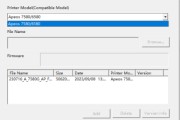
Canon iR C3222L system upgrade firmware v1.16 (USB) version IR C3222L System Firmware Update Guidebook v4.1 After downloading, please unzip directly to the root directory of the U disk to use without SST tool conversion. 1. Update the host system firmware: 1-1. Insert the USB drive with system firmware into the USB port on the right side of the operation panel. 1-2. Turn on the main power of the multifunctional machine. 1-3. When the language setting interface or time setting interface setting wizard appears on the screen of the multifunctional machine, use the following panel toPress the button to enter maintenance mode. 1. In standby mode, press the "Home" button. 2. Press the "SP1" key. 3. Press the "SP2" key. 4. Press the "volume" button. 5. Press the 'stop' button. 6. Then the display screen shows the "Maintenance Mode" interface. Link: https://pan.baidu.com/s/1rLqmOb_YgolvAyVJGYCMbA?pwd=s7f2 Extraction code: s7f2 |
Address of this article:https://073868.com/post/4287.html
Copyright Notice:
For relevant infringements, reports, complaints and suggestions, please send E-mail:weixiuwang68@qq.com
Tags: #C3222L #Canon Firmware #USB