|
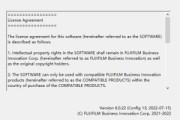
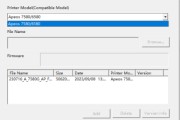
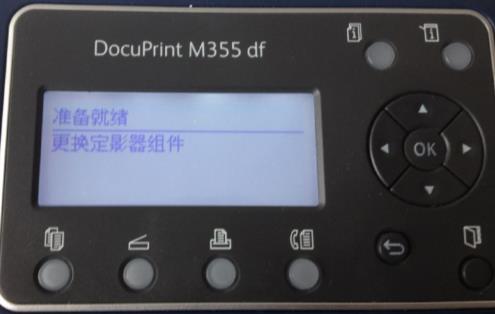
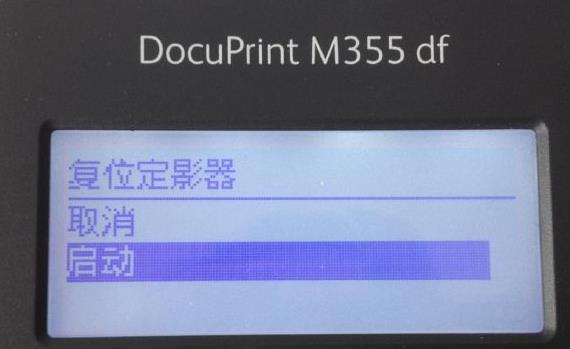
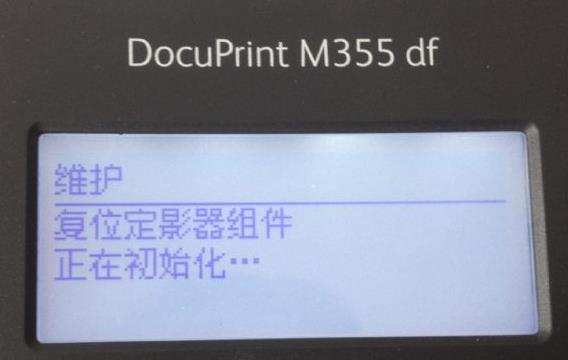
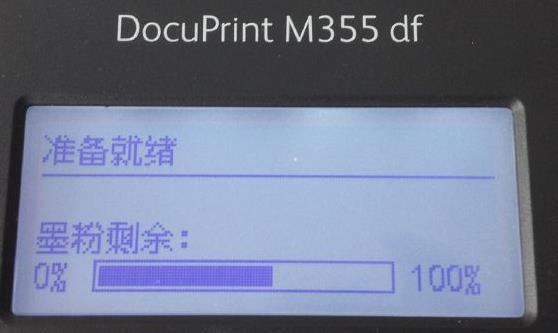
Xerox DP_M355df Upgrade Firmware Program P355d_P355db_P368d_P455d_M455df Technical Information 001, DocuPrint, M455df wired network configuration instructions 002 DocuPrint、M355_455、 Precautions for replacing motherboard 003 DocuPrint、M355_455、 Selenium cartridge lifespan description 004 DocuPrint、M355_455、 Method for setting priority feeding for hand fed paper tray Fault phenomenon: Users need to prioritize feeding from the manual paper tray. When both paper tray 1 and manual paper tray have paper, they should prioritize feeding from the manual paper tray. When there is no paper in the manual paper tray, they should feed from paper tray 1. Solution: 1. Printer panel settings: Menu - Tray settings - Bypass Tray - MPT Model, change to Panel Specified, and then set the paper size and paper type to match those of Tray 1. 2. Printer driver settings: Right click on the printer driver - Printer Properties - Print Preferences - Advanced, and change the Paper Tray Selection Method to Use Drive Settings. 005 DocuPrint、M355_455、 Methods for clearing the lifespan of the fixer and resetting the lifespan of the transfer componentFault phenomenon: After the lifespan of the fixer expires, it needs to be replaced with a brand new fixer. After replacing the fixer, the reading of the fixer needs to be reset to zero.
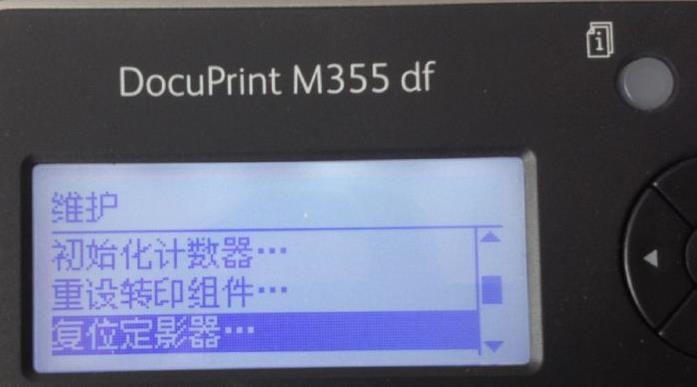
Solution: 1. Press the white i key to enter the administrator menu, then press ↑ or ↓ to find [Maintenance]
2. Select 'Reset Fuser', click 'OK', and then select 'Start'
006, DocuPrint, M355df_S455df__CM318z_CM405df_ Instructions for receiving fax through shared folder settings 007, DocuPrint, M355df_S455df_CM318z_CM405df_Computer Fax Sending Operation Instructions 008, DocuPrint, M355df_S455df_CM318z_CM405df_CReceive fax settings instructions via email 009, DocuPrint, M355df scanning driver installation and network pull scanning setup instructions 010, DocuPrint, M355df Network Scan to Folder Settings 011. DocuPrint, M355df Network Scan to Email Function Setting Instructions 012, DocuPrint, M455df driver installation and network pull scan setup instructions 013. DocuPrint, M455df Network Scan to Email Function Setting Instructions 014 DocuPrint、P355_455、 Solution to Clock Error (116-364) 015 DocuPrint、P355_455、 Hand fed paper tray damping wheel number 016 DocuPrint、P355_455、 Method for setting priority feeding for hand fed paper tray 017 DocuPrint、P355_P455_M355df_M455df、 Solution to the mismatch between the original manuscript size and the paper size set in the paper box 018. DocuPrint, P355d_455 main motor shaft fracture replacement plan 019, DocuPrint, P355d_P368d_P455d_Apple System Network Driver Installation Instructions 020, DocuPrint, P355d_P368d_P455d wired network configuration instructions 021, DocuPrint, P355d_P355d_P368d_P455d_Apple System USB Driver Installation Instructions 022, DocuPrint, P355 menu diagram Chinese English comparison table 023, DocuPrint, P355 panel displays the meaning of "Toner, Left" 024, DocuPrint, P455d wired network configuration instructions 025 DPM355_455、 Solution for fault code 116-317 Fault phenomenon: Machine startup reports fault code 116-317. Solution: DPM 355: 1. Simultaneously press and hold [▲]+[▼]+[MENU] to turn on the device 2. At this time, the screen displays: F/W Update/Assessment 3. Press [▼] twice, then press [OK]. 4. At this time, the screen displays: F/W Download/DL Mode USB 5. Press the OK button on the machine panel (if you don't press OK, the upgrade will not find the hardware) 6. Upgrade firmware (firmware can be downloaded from the engineer's website) If upgrading does not solve the problem, please replace the motherboard. DPM 455: 1. Press and hold [0]+[5]+[8] simultaneously to turn on the device 2. At this time, the screen displays: Boot Password 3. Press [8], [8], [5], and then press [OK]. 4. At this time, the screen displays: Menu 1. Download 5. Press the OK button on the machine panel (if you don't press OK, the upgrade will not find the hardware) 6. Upgrade firmware 026 DPP、 355. Network Connection Error 116-324 Solution 027 DPP&M355、 Paper box lifting shaft fracture updated version 028 DPP&M355_455、 Motor damage causes paper jam in the position of the toner cartridge 029. IP address and reading viewing method 030, M355df wired network configuration instructions 031, M455df Network Scan to Folder Settings 032, M455df Cable Network Configuration Manual 033, P355d_P368d_P455d wired network configuration instructions Installation of 034, P355db, USB print driver 035, P455d wired network configuration instructions 036. Foreign Technical Communication - Printing Envelope Wrinkle Solution 037. How to retrieve cardboard 038, DocuPirnt, P355d_P368d_P455d, Windows Network Printing Driver Installation 039, DocuPirnt, P355db, USB print driver installation |
Address of this article:https://073868.com/post/2078.html
Copyright Notice:
For relevant infringements, reports, complaints and suggestions, please send E-mail:weixiuwang68@qq.com
Tags: #M355df #Scan to Folder #116-324 #116-317 #P455d